Deploying Foldr for Windows with Microsoft Intune
Introduction
Microsoft Intune MDM can be used to deploy the Foldr app to Windows 10 or 11 clients using an .intunewin setup file. The .intunewin installer will install the two required pre-requisites (Visual C++ and .Net Framework Desktop 8 runtimes) if they’re not already installed on the Windows device and also upgrade clients running Foldr for Windows 3.x to the latest v4.x release.
The .intunewin setup installer will only upgrade a client with an existing Foldr installation if Foldr is not running, to prevent interrupting users and potentially causing data loss.
Intunewin Download Links
x64 .intunewin installer
ARM64 .intunewin installer
Upgrading from version 3.x to 4.x
Customers typically deployed Foldr v3.x using a ‘Line of Business’ app using the MSI. The new installer is in a different format (.intunewin) so to upgrade between the two releases the following steps should be followed:
1. In the Intune admin center, navigate to Apps > Windows apps and edit the existing Foldr ‘Line of Business’ app
2. Go to the Assignments tab and remove the assignment so the LOB app is no longer deployed to clients. Alternatively delete the LOB app from Intune.
3. Create a new Win32 app, using the .intunewin installer and configure it using the steps below.
Deploying the Foldr app with Intune
1. Log into https://intune.microsoft.com with a suitable administrative account.
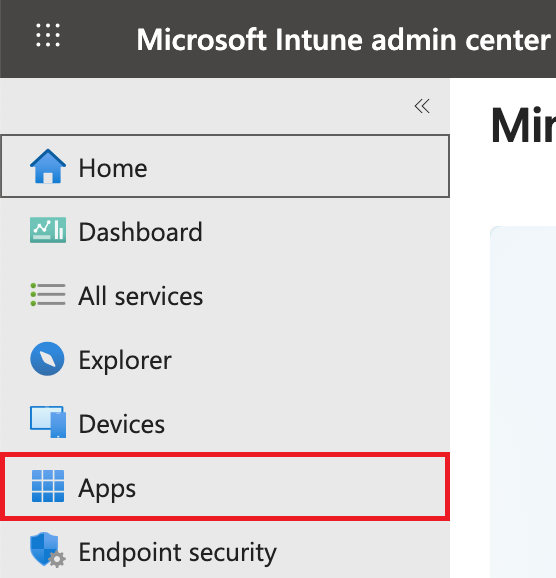
2. Click Apps
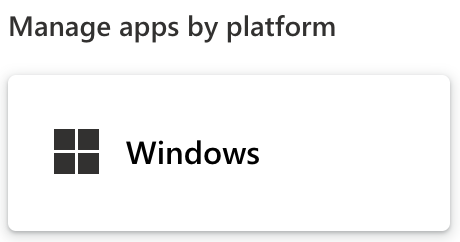
3. Click Windows
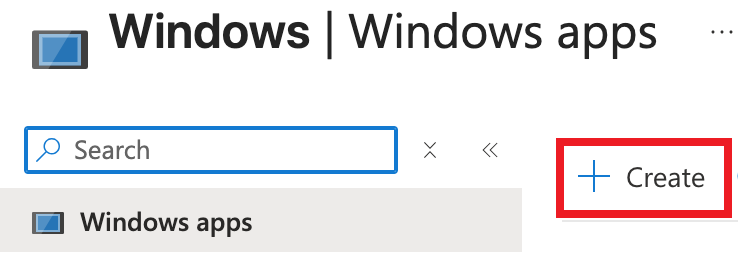
4. Click + Create
5. Select Windows app (Win32) from the App type drop-down menu
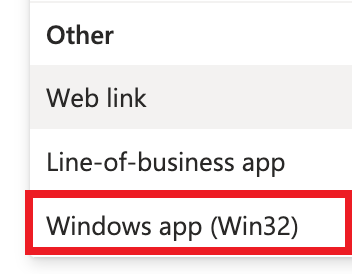
6. Click Select
7. Click Select app package file
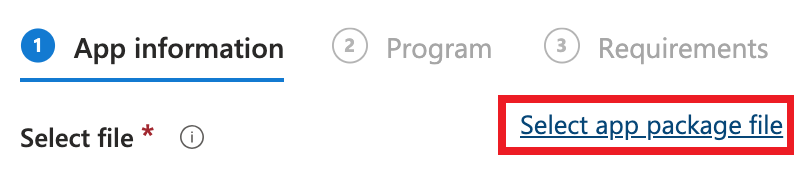
8. Click Select a file
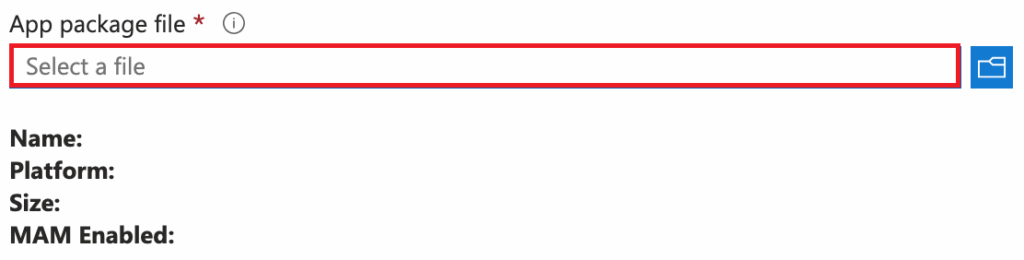
9. Extract the latest intunewin.zip file to a suitable location, such as the desktop and browse to the Foldr file.
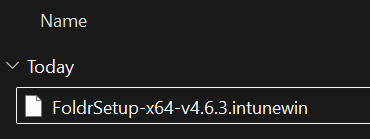
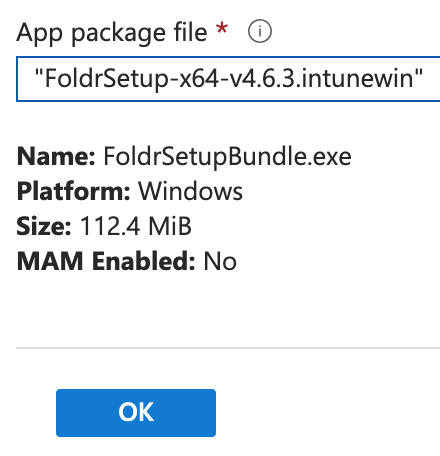
10. The package summary will populate. Click OK
11. Enter a suitable Name, Description and Publisher as below
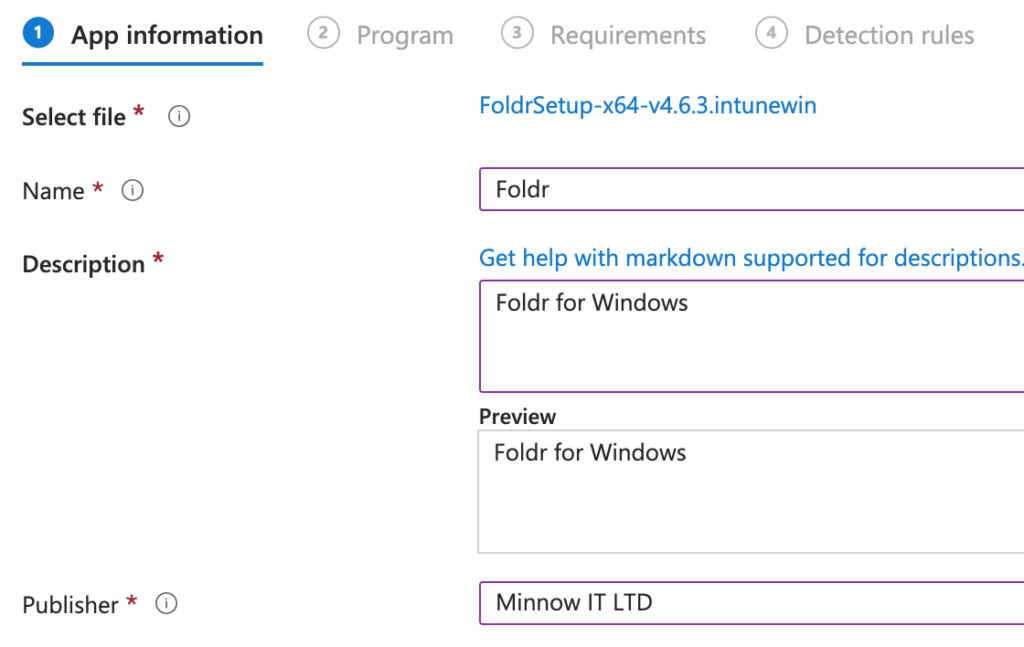
12. Click Next
13. On the Program tab, populate the Install and Uninstall commands as required
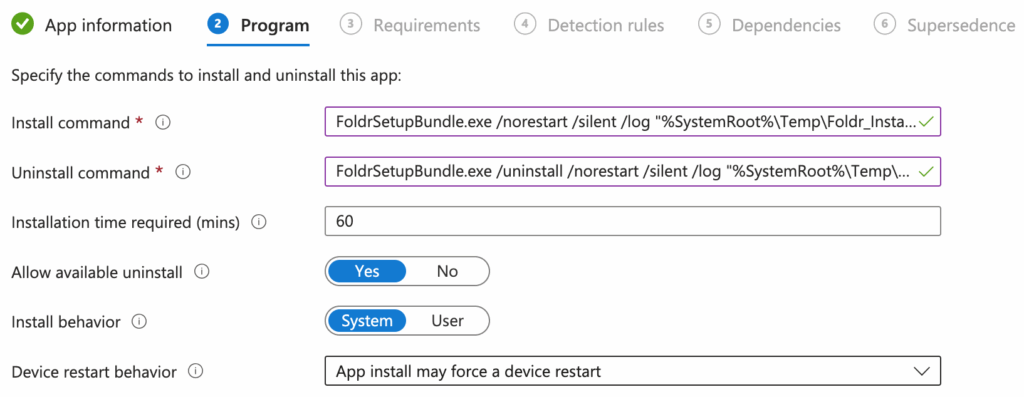
Example Install command:
FoldrSetupBundle.exe /norestart /silent /log "%SystemRoot%\Temp\Foldr_Install.txt" AllUsersStartup=1 AddDesktopShortcut=1
The command above will run the FoldrSetupBundle executable inside the .intunewin installer, ensure that the client does not restart and will perform a silent installation. The installation will be logged to C:\Windows\Temp. The additional arguments are explained below:
AllUsersStartup=1 – Configures Foldr as a startup app so it will run automatically when users sign into Windows. If this is not specified, Foldr will not be configured as a startup app in Windows.
AddDesktopShortcut=1 – Configures Foldr to add a desktop icon/shortcut for all users. If this is not specified, users will no longer see a Foldr icon on the desktop after installation.
Admin Preferences are supported as part of the installation command, and these should be appended to the command as shown below. These command arguments can be used to configure various app settings, including the server address, antivirus requirements, cache settings and more. A full list of supported admin preferences can be found here.
Example Install command setting the Foldr server and antivirus requirement to be enforced:
FoldrSetupBundle.exe /norestart /silent /log "%SystemRoot%\Temp\Foldr_Install.txt" AllUsersStartup=1 AddDesktopShortcut=1 FOLDR_SERVER=https://myfiles.foldr.cloud REQUIRES_ANTIVIRUS=1
Various app settings may also be controlled and enforced centrally from the Foldr server using an App Profile, applied to users or groups as required. More information on App Profiles is available here.
Example Uninstall command:
FoldrSetupBundle.exe /uninstall /norestart /silent /log "%SystemRoot%\Temp\Foldr_Uninstall.txt"
14. Click Next
15. On the Requirements tab, configure the minimum operating system as shown below:
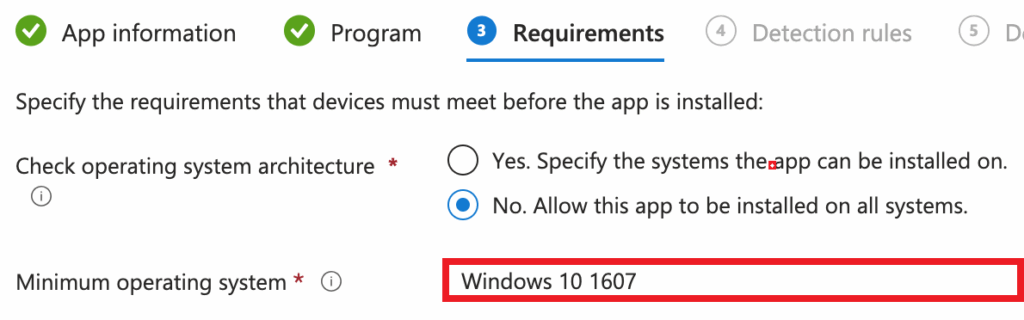
16. Click Next
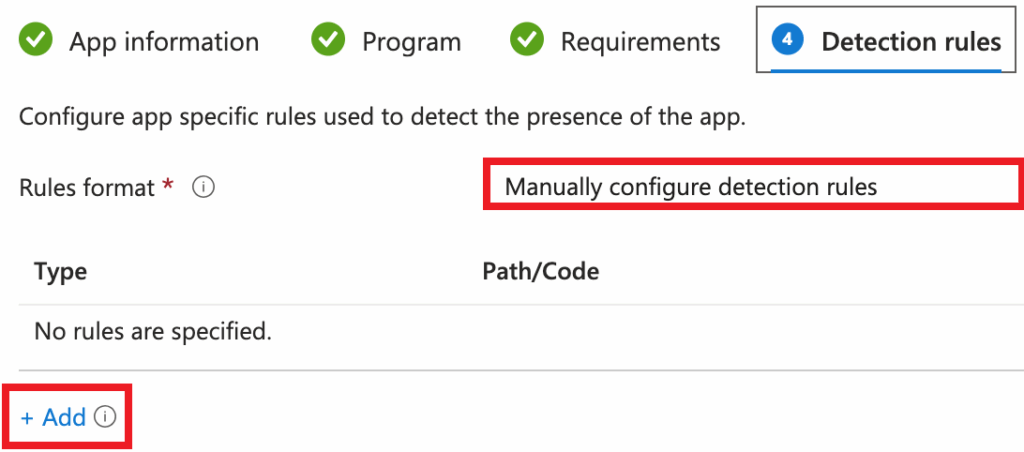
17. In the Detection rules tab, select to Manually configure detection rules and click + Add
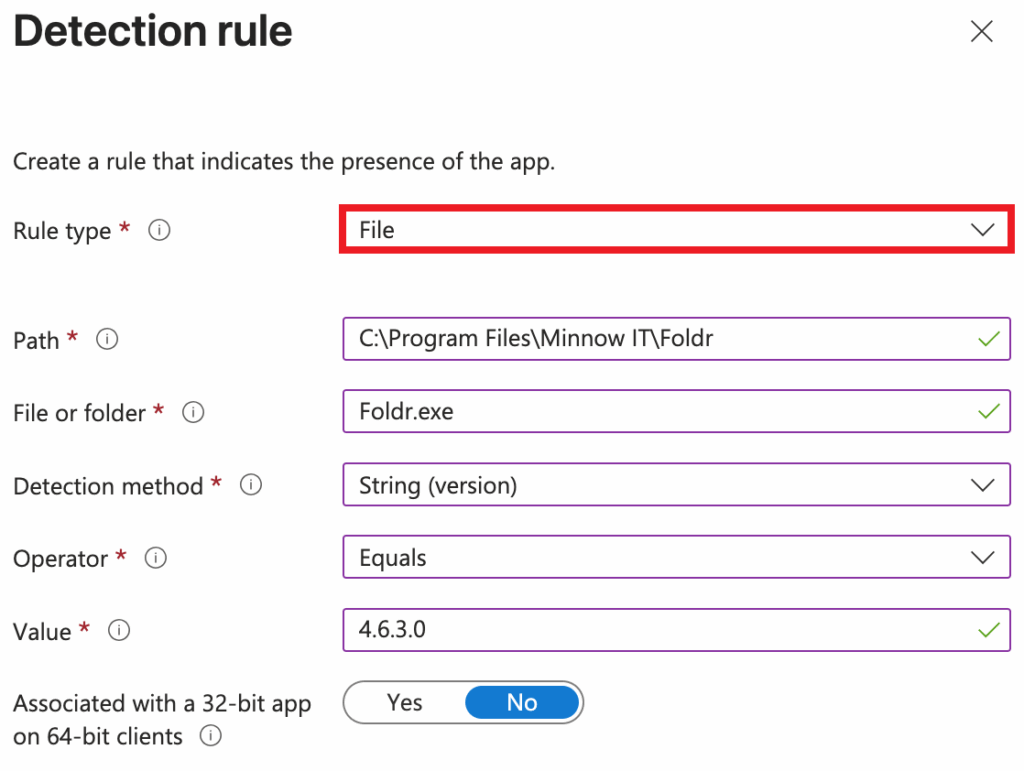
18. Select File as the type from the drop-down and populate the path, file and detection method as shown below.
IMPORTANT
The detection method (string / version) value must be populated using 4 characters as shown below or the detection rule will fail.
Foldr app version 4.6.3 will require a value of 4.6.3.0
Foldr app version 4.6.4 will require a value of 4.6.4.0
19. Click OK
20. Skip past the Dependencies and Supersedence tabs, clicking Next
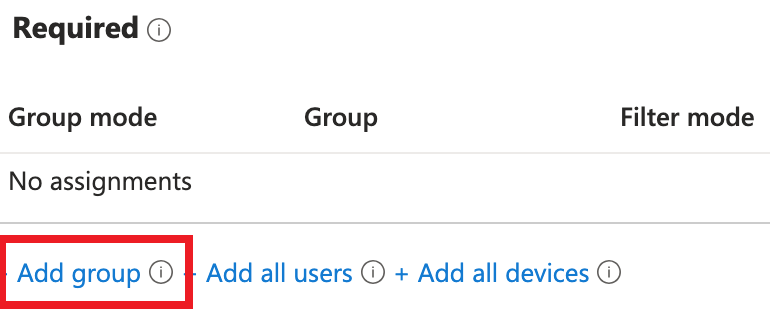
21. On the Assignments tab, assign the app to a suitable group of devices using the Required section. In the example below, the app is being deployed to the Software Installs security group, clicking + Add group
Then searching for and selecting the checkbox next to the appropriate group
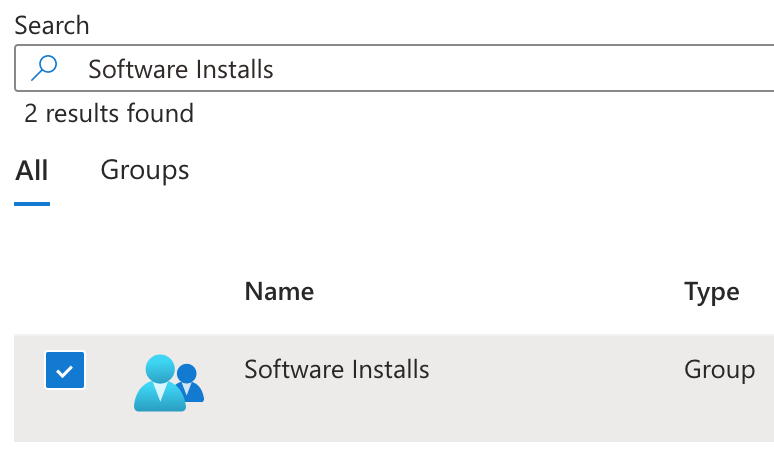
22. Click Select and then click Next
23. On the Review and create tab, check the configuration and then finally click Create
24. After a few seconds, you will see a notification (top-right) that the .intunewin file is being uploaded to Intune.
25. Once complete, Foldr will be shown in the Windows apps list and when clients next check-in with Intune, the app will be installed.
26. Should you wish to force a client to sync with Intune and receive new software installations/policies, the Sync button may be used in the Devices > Windows device overview screen.
Preventing Windows Client Restarts
To prevent a Windows client restarting after installation, use the command-line argument /norestart when configuring the Install command.
Upgrading the Foldr app with Intune
Upgrading the app with the .intunewin package is simply a case of editing the Foldr win32 app, supplying the new .intunewin installer package and adjusting the detection rule value at step 18 to check for the four-character value that matches the new version being deployed. The steps to do this are shown below:
1. In the Intune admin center (https://intune.microsoft.com) – sign in with an administrative account and click Apps > Windows and select the win32 app for Foldr.
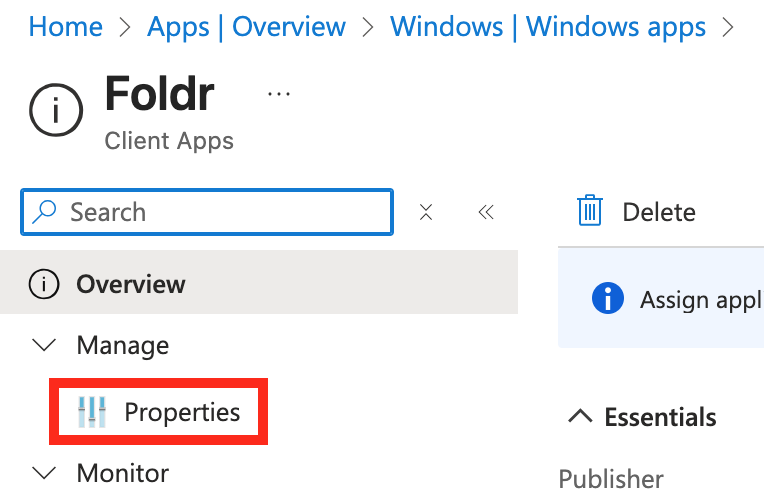
2. Select Properties
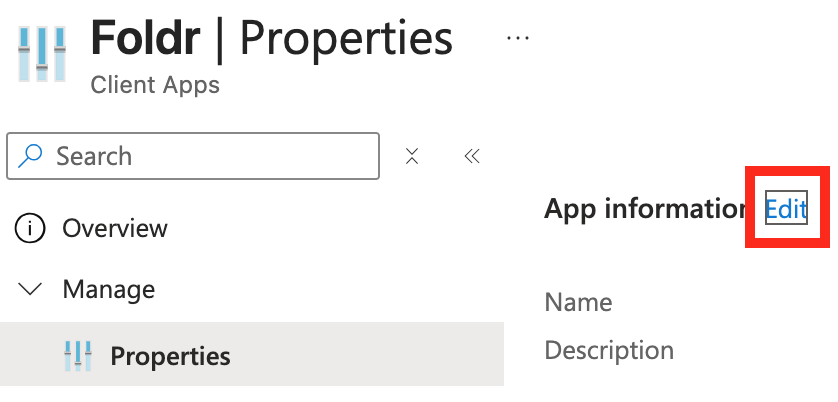
3. Select Edit
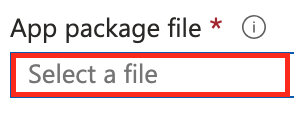
4. Select the file to update (existing FoldrSetup .intunewin)

5. Click Select a file
6. Browse to the new FoldrSetup-x.intunewin file that you wish to deploy. Then click confirm the selection. 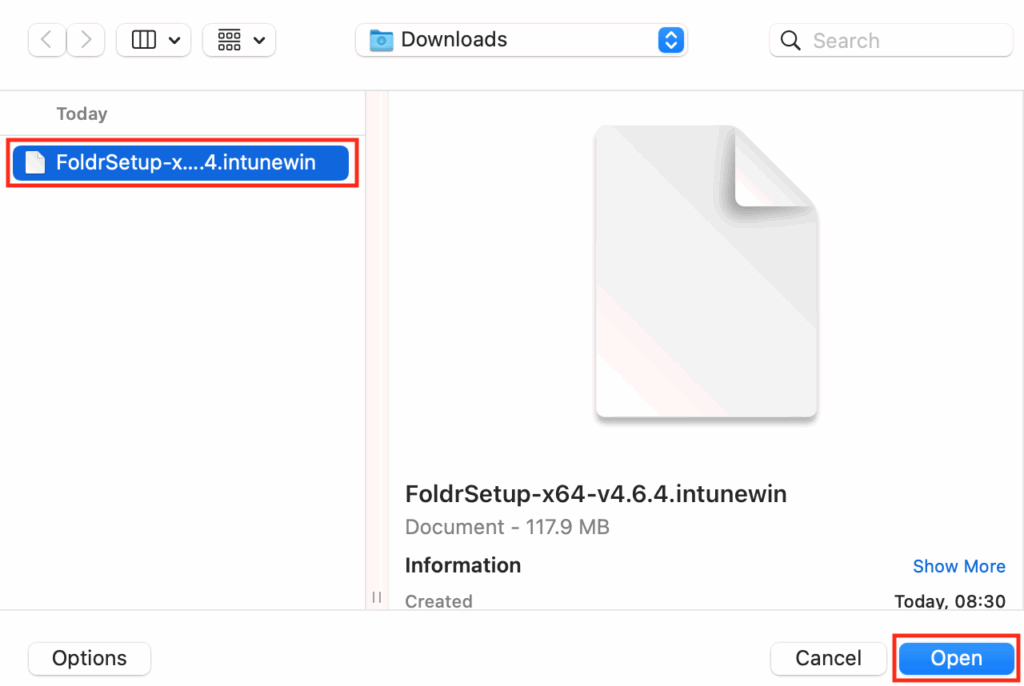
7. The Intune app package summary screen will populate. Click OK.
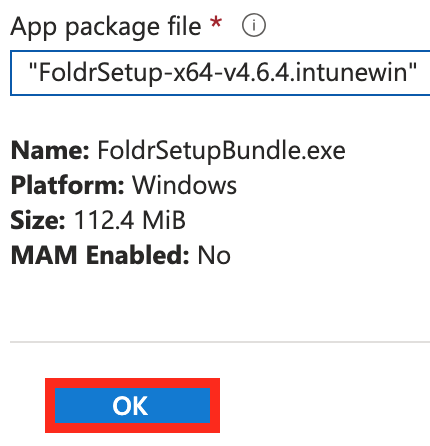
8. Click the Detection rules tab

9. Click the existing file-based detection rule
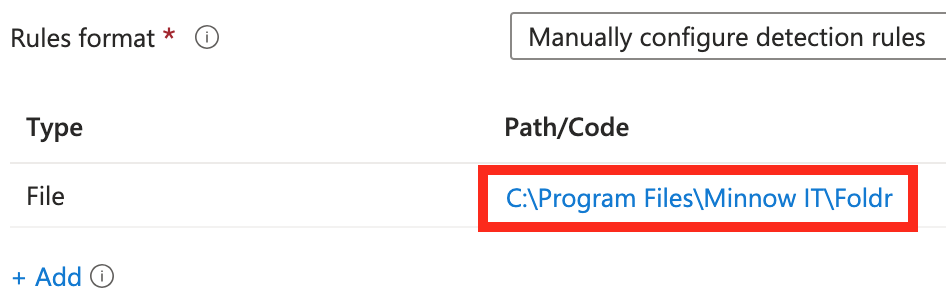
10. Amend the Value of the version string to reflect the new .intunewin package that is being deployed as part of the upgrade. In the example below, 4.6.3.0 is the existing version.
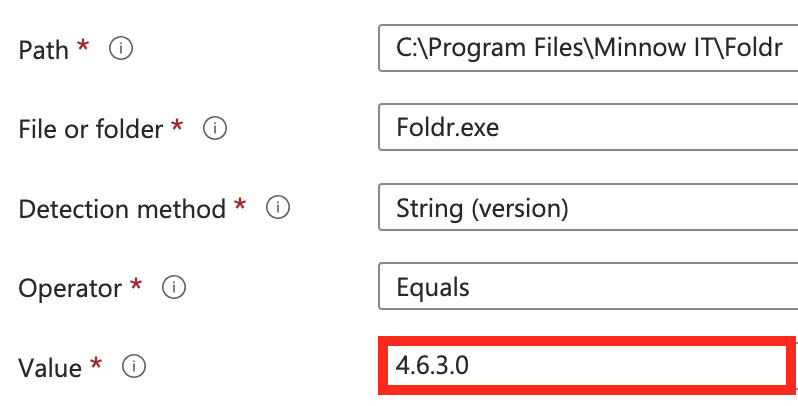
Value is adjusted to 4.6.4.0

11. Click Review + save

12. Click Save

The Intune admin panel will notify you that the new .intunewin package is being uploaded.

Once that has completed, an application save confirmation notification will be displayed
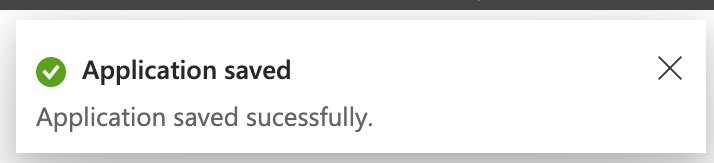
The upgrade process is now complete. When Windows clients next check in to Intune, Foldr will be upgraded providing the Foldr app is not in use / running at the time.
Installation Failures
In the Windows notification area, a notification message may appear stating that the Foldr app installation has failed. This will happen if the user has Foldr running at the time of installation and will silently return exit code 0x652 (1618 which defaults to retry).
This exit code can be found in C:\Windows\Temp\Foldr_Install.txt (providing the same installation command was used as in this article)
Intune has built-in retry mechanisms and will attempt to install the app at a later time when the Foldr app is not running.
The Intune admin can also attempt force installation retry by manually syncing the device from the Intune > Devices panel.
How does a user close Foldr to allow an Intune upgrade to take place?
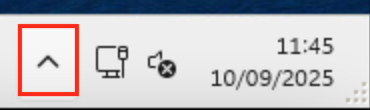
1. Expand the Windows system tray / notification area
2. Right-click on the Foldr icon
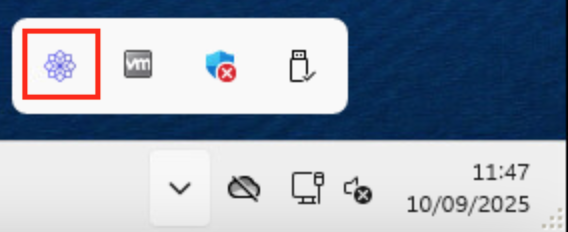
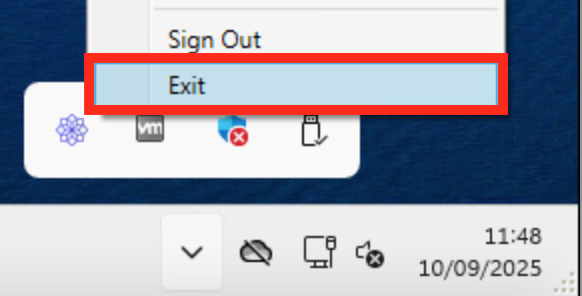
3. Select Exit from the pop-up menu