The Foldr desktop apps for Windows and macOS provide a feature called Office Assist that allow locally installed Office apps to work natively with the online version of Office files hosted in Microsoft 365, formerly known as Office 365. The storage locations that are compatible with Office Assist are:
OneDrive
SharePoint
Teams
Working online in this article refers to editing the cloud hosted version of a document and allows users to benefit from native Microsoft Online features such as AutoSave in Word, Excel & PowerPoint, both in Office desktop and web apps, collaborative editing and more. When editing an online version with a locally installed Office application, Foldr passes the online URI of the document to Office and the document save/upload process is handed off entirely to the Office app and the Microsoft 365 cloud platform.
Office Assist on Windows allows users to open documents online by double-clicking files in the Foldr drive, or by using File > Open inside Office. This feature uses a dedicated Office Add-in to provide this functionality.
Office Assist on macOS does not use an Office Add-in and provides a similar experience albeit with slightly reduced functionality. Users are requires to double-click on files in the Foldr drive in Finder to open the online version. Opening the online version of a document on macOS is not possible from inside the Office app (using File > Open).
IMPORTANT UPDATE – August 2025
Foldr for Windows v4.5.6, released August 2025 includes Office Assist v2 which now uses a new Foldr Office Add In for Word, Excel and PowerPoint apps to provide the ability to work online with Office 365 hosted documents.
Office Assist v2 in the v4.x Windows apps no longer relies on modifying file extensions for Office document formats on the Windows client. The feature is also enabled automatically, but can be disabled on a per Office application basis(Word, Excel or PowerPoint) in the app settings > Office tab.
Office Assist is enabled by default in Foldr for Windows v4.x apps.
Information and download links to upgrade from version 3.x to 4.x of the Windows app is available here:
Windows app – Installation and Configuration guide
How to work Online with Office 365 documents – Quick Summary
A user can work online with Microsoft 365 hosted cloud documents if they use ONE of the following methods in Foldr:
-
- Ensure Office Assist is enabled in the Windows or macOS desktop apps. macOS users need to double-click in the Foldr drive in Finder to open the online version of a document.
- Use the Windows or macOS app’s context menu. Selecting the Edit in Microsoft Office option by right-clicking the document > Foldr > Edit in Microsoft Office
- Use the Foldr web app. The web app will always open the online version of a document.
Note 1 – The locally installed Office app should be signed in with the same Office 365 account as linked in Foldr to edit online. This applies to editing from Foldr web or desktop apps.
Note 2 – The Foldr for Windows app must be running before an Office application is launched (Word, Excel or PowerPoint) to successfully load the Office Add-In.
Foldr desktop apps editing mode (Offline) on non Microsoft 365 Storage
Office files that are opened from any other storage type (SMB shares, Google Drive, S3 etc) will always open using a local / offline version that is downloaded and resides in the local Foldr app cache. The difference between offline and online editing is significant and affects how the file is handled after the user has finished editing the file. When working offline, the user clicks save in the Office app, it is placed into the upload queue in the Foldr app and it’ll use the standard Office save mechanism where a temporary file is created, the existing document on the remote storage is deleted and then finally the temporary file is renamed. Office owner files are also created and deleted when working with offline versions of Office documents. When working online, the user does not need to click save in the Office application, and all changes are uploaded automatically and directly between the client machine and Microsoft’s cloud platform.
Without Office Assist enabled in the desktop apps, or using other methods to open files (the context menu) in the Foldr drive to open and edit documents, the Foldr app would open Office documents in Office 365 locations with the a local offline version. Offline editing does not support collaborative editing (and traditional file locking is not possible) so it is not desirable to have users working on Office documents in common 356 storage areas such as SharePoint and Teams in this mode. Working offline and having multiple users accessing files via different routes can lead to a scenario where users are editing the same document at the same time and may potentially result in data loss depending on who saves the open file last. Opening documents using the online version avoids these kind of issues.
As such, Office Assist is recommended and should be enabled when users are working with Office documents in from Microsoft 365 storage locations – OneDrive, SharePoint or Teams.
Foldr provides other features to help mitigate these types of issues when working with documents from SMB (Windows file server or NAS) shares. Click here to learn more about Foldr’s Checkouts and its complimentary file locking service. Please be aware that checkouts may be used on all storage types, not just SMB shares. The file locking service is an SMB share specific feature.
How to tell if you’re working online (native 365 editing experience) vs offline when using Foldr desktop apps
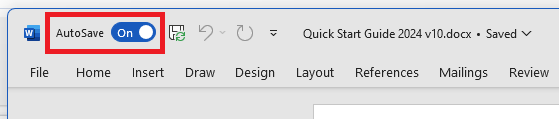
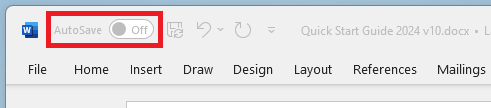
A quick and easy way to tell if you’re working online vs offline is to look at the status of the AutoSave option in the Office application. When you open an Office document from the Foldr drive, the AutoSave option will be either disabled or enabled. The user does not need to enable or disable AutoSave themselves, it will show the relevant status automatically (on or off) depending on the editing mode.
Online = AutoSave On
Offline = AutoSave Off
How to work with the Online version of a Document, Spreadsheet or Presentation
Office Assist Setup – Windows
Enabling Office Assist
Office Assist is enabled by default in Foldr for Windows v4.x and Foldr for macOS. However, it may be configured in the following locations.
- The user can manually disable or enable it in the Foldr app settings.
- It may be disabled or enabled centrally by the Foldr administrator using an App Profile on the Foldr Server. When the Office Assist state is controlled via an App Profile, the user will be unable to change its state in their app settings.
- Alternatively it can be enabled at the time of app install using an install argument for Windows and macOS or finally by pushing out registry keys on Windows or app preferences on macOS. When the Office Assist state is controlled via the suitable registry key or app preference, the user will be unable to change its state in their app settings.
App Profiles are recommended if the administrator wishes to disable or enforce Office Assist en-masse for users as it can be controlled centrally and requires other no changes to the client machine.
Windows app settings – Office Assist
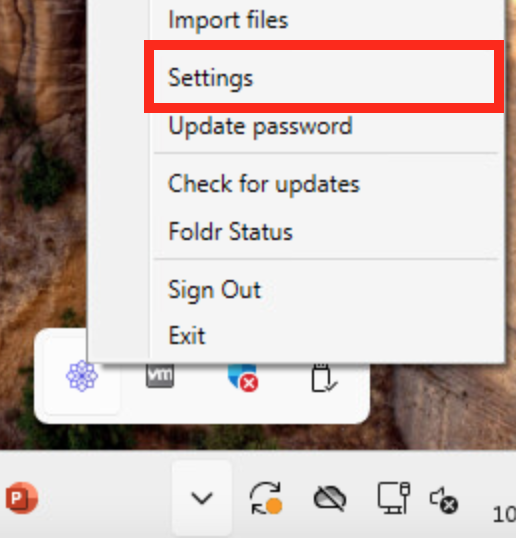
Open the app settings from the Foldr system tray icon context-menu
Click the Office tab to confirm if Office Assist is enabled for the Office apps as required.
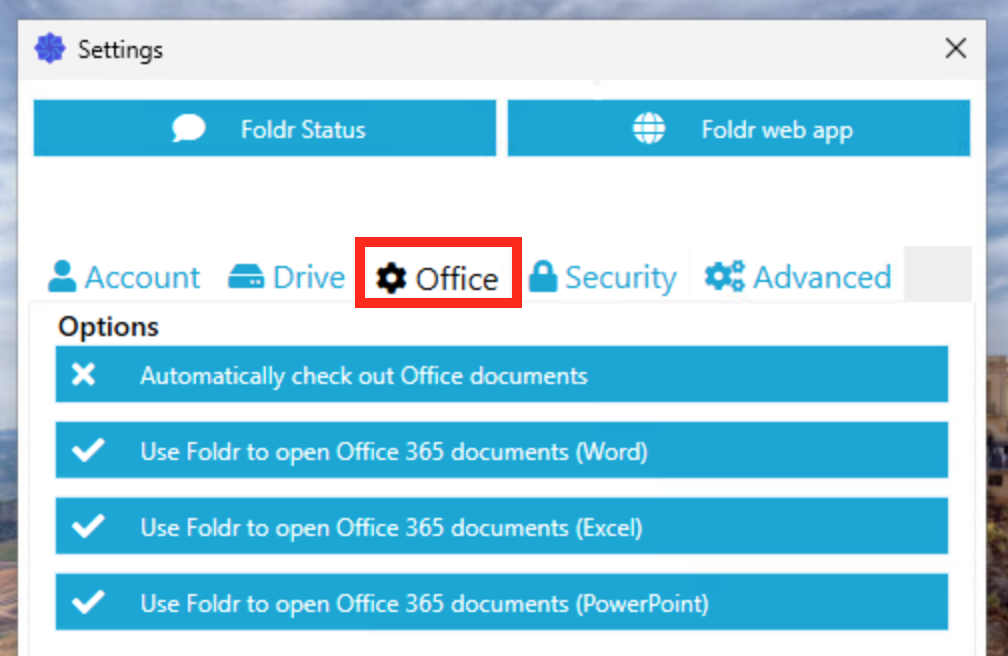
The setup process for Office Assist is now complete. Clicking Microsoft Office documents in the Foldr drive that are hosted on OneDrive, SharePoint sites or Teams channels will open online and autosave will be enabled in the Office applications.
Office Assist Setup – macOS (double-click to open Online)
To enable Office Assist on macOS the user only needs to enable the Office Assist option in the app Settings. Unlike, Windows, no other steps are required.
Click the Foldr icon in the macOS Menu bar and select Settings
Click Advanced
Enable the option labelled Use Foldr to open Office 365 documents
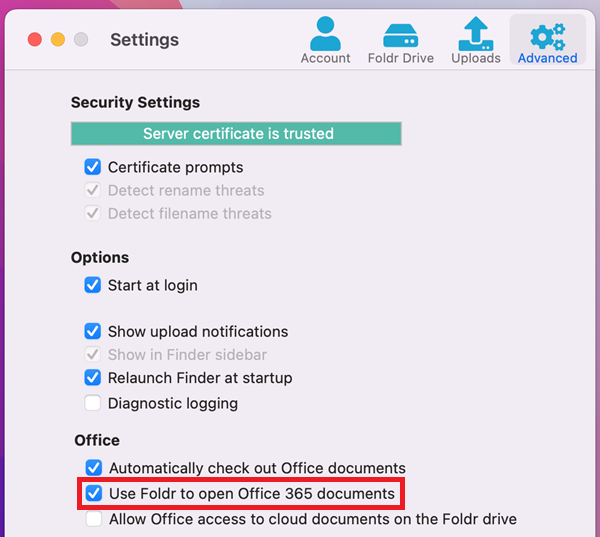
The setup process for Office Assist is now complete. Clicking Microsoft Office documents in the Foldr drive that are hosted on OneDrive, SharePoint sites or Teams channels will open online and autosave will be enabled in the Office applications.
Office Assist – What happens when Open is used inside Office apps?
Using the Foldr app on a Windows devices allows a user to open the online version of a document hosted in Microsoft 365, by either using File > Open inside an Office application or by double-clicking the file in the Foldr drive in Windows file explorer.
On macOS however, it is not possible to open the online version of a file from inside the Office app using File > Open. This is due to macOS not supporting VTSO Office Add-ins which are a Windows only feature.
Other ways to work with documents online in Foldr
Foldr web app
The Foldr web app provides editing options to open documents in both locally installed Office applications and Office web apps (plus other editing options if they are enabled by the Foldr administrator)
Click on the document in Foldr and it will be opened in the file viewer.
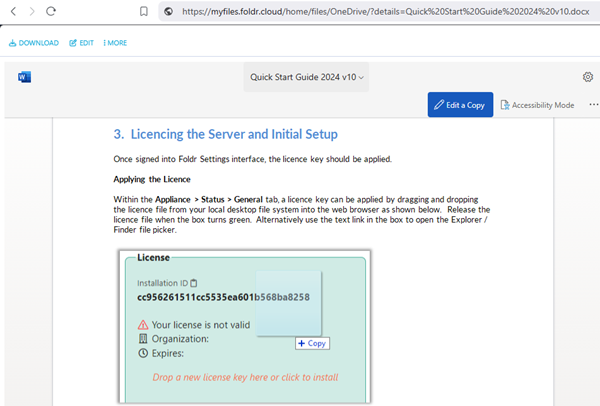
Click the Edit button at the top left of the file viewer

This will present two editing options
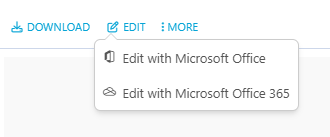
Edit with Microsoft Office = Locally installed relevant Office app. (docx = Word, xlsx = Excel, pptx = PowerPoint)
Edit with Microsoft Office 365 = Office 365 web app
Clicking Edit with Microsoft Office in this case launches the locally installed Microsoft Word application and the file is open ready to edit – Note the AutoSave option is automatically enabled top right of the Word interface.
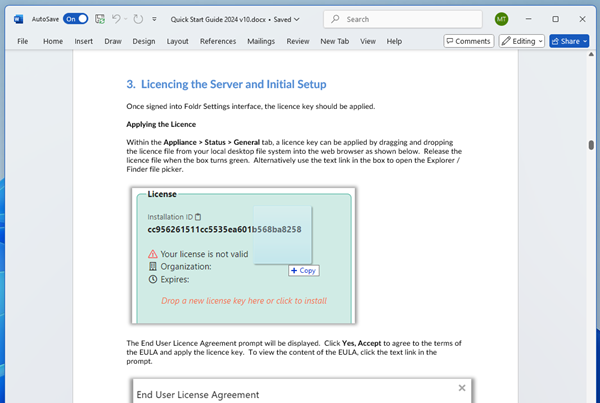
Clicking Edit in Microsoft Office 365 launches the Office 365 web app and presents the document ready for editing
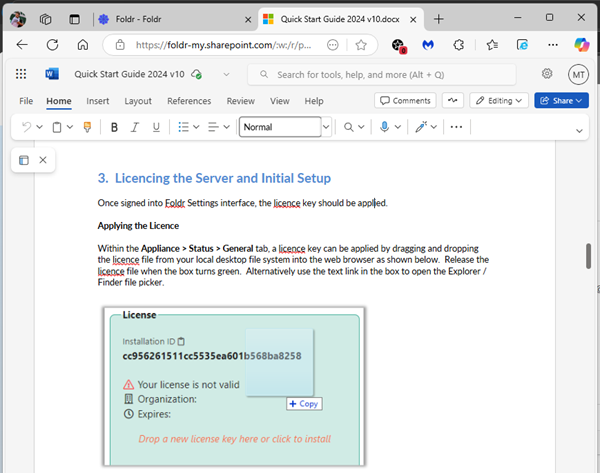
Using either mode, after the user has finished making their changes they simply need to wait for the Saved icon / text to be displayed in the Office app. They can close the Office application or web browser tab.
Context menu (desktop apps)
Both Windows and macOS apps provide a context (right-click) menu in Windows Explorer or macOS Finder to provide access to other Foldr features. The context menu provides two editing options for Office documents (relating to the use of desktop or web apps) and allows users to quickly open the online version of the file if it resides in Office 365. Note that these options are only visible if you’re using the context menu inside an Office 365 storage location such as OneDrive, SharePoint or Teams.
The context menu is an convenient way to work on online versions of files in the Foldr drive as it requires making no changes to the client either in app settings or server-side by a Foldr administrator.
1. Open the Foldr drive, browse through My Files and locate the document hosted in Office 365. In this example below we are using Windows 11 and OneDrive.
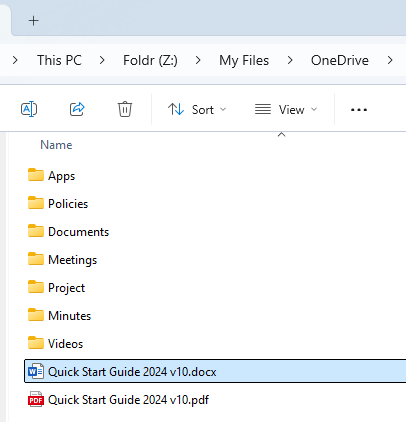
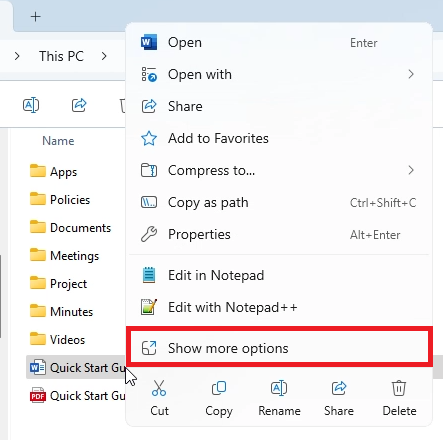
Right click the file to show the context menu. On Windows 11, additional context-menu options are accessible via ‘Show more options’. Windows 10 users will immediately see the full context menu shown at the next step.
Select Foldr and then choose from one of the two Office editing options.
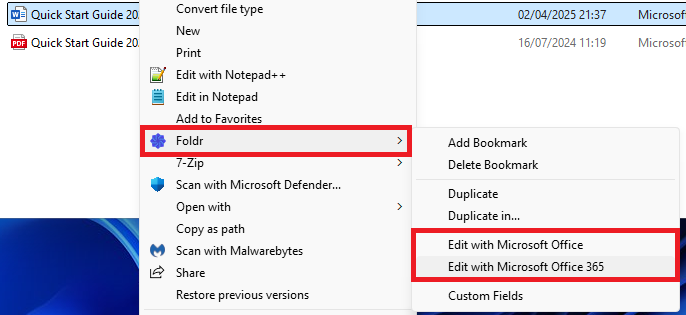
Edit with Microsoft Office = Locally installed relevant Office app. (docx = Word, xlsx = Excel, pptx = PowerPoint)
Edit with Microsoft Office 365 = Office 365 web app
Clicking Edit with Microsoft Office in this case launches the locally installed Microsoft Word application and the file is open ready to edit – Note the AutoSave option is automatically enabled top right of the Word interface.
Clicking Edit in Microsoft Office 365 launches the Office 365 web app and presents the document ready for editing
Using either mode, after the user has finished making their changes they simply need to wait for the Saved icon / text to be displayed in the Office app and they can close the Office application or web browser tab.