Canvas LMS Integration
Foldr integrates with Canvas LMS via LTI 1.1. The integration provides a convenient way for a user to be able to open a file picker dialog and upload files from any storage location available through Foldr into a course / assignment.
A note on LTI versions. Foldr’s Canvas integration uses LTI 1.1. Canvas itself increasingly favours LTI 1.3 for new app installs and may eventually deprecate 1.1. If your Canvas instance has been configured to allow only LTI 1.3, the integration steps below will not work; contact Foldr support before deploying.
Integration steps
1. Within Foldr Settings >> Integrations enable the Foldr File Picker
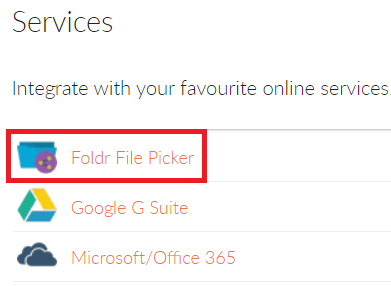
Turn on the feature and within Access Details, enter the public URL of your Foldr system (note wildcards can be used here if required).
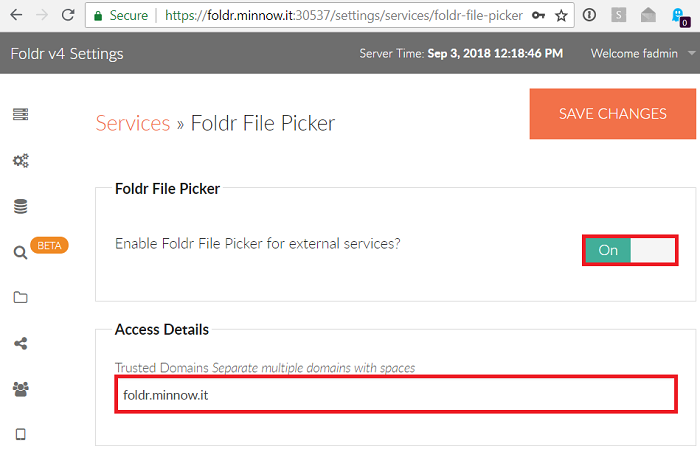
Click Save Changes
2. Within Foldr Settings >> Integrations, select Canvas LMS
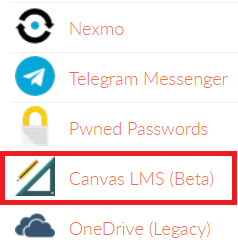
Enable the Canvas LMS Integration toggle and enter your Canvas URL within the Access Details field
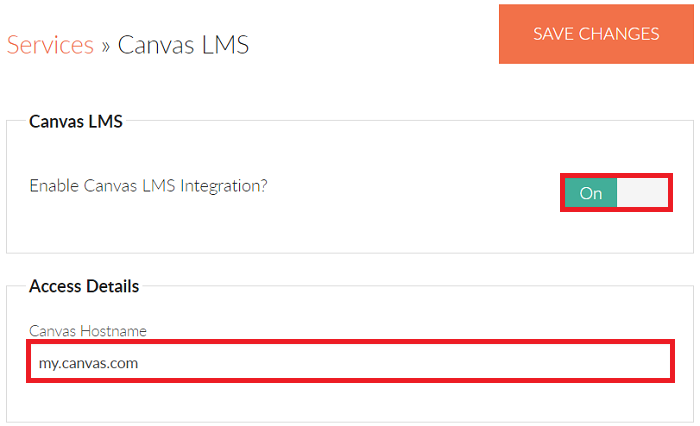
Click Save Changes
Note that the XML Metadata URL shown on the Canvas LMS screen should be copied at this point.
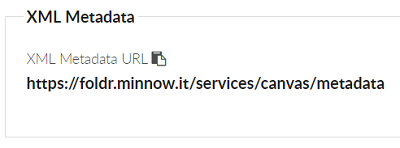
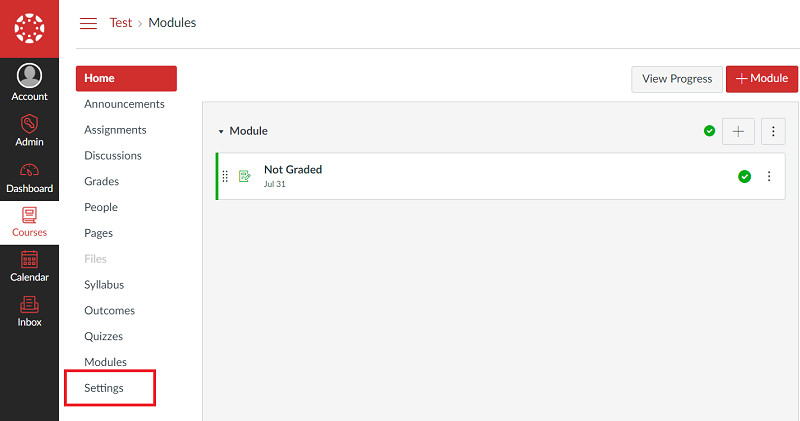
3. Log into Canvas and navigate into a Course >> Settings
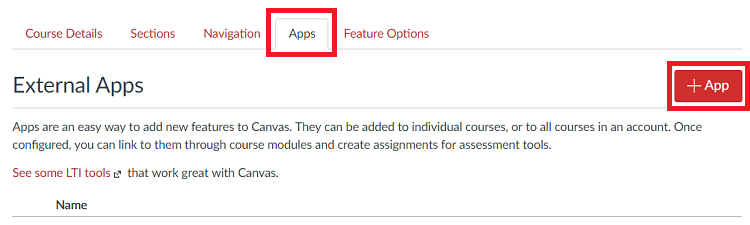
Click on the Apps tab >> + App button
Select the Configuration Type ‘By URL‘
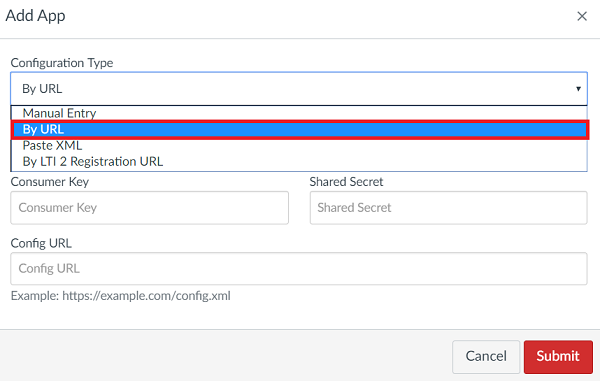
Leave the Consumer Key and Shared Secret fields blank. Give the App a suitable Name and paste in the Metadata URL into the Config URL field
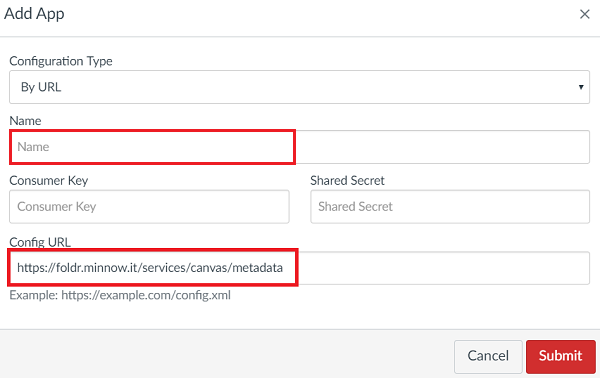
Click Submit
The Foldr file picker will now be available for selection in Canvas, both as a teacher when creating assignments and as a student to submit files.
Teacher View
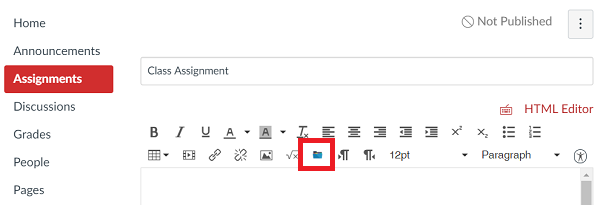 }
}
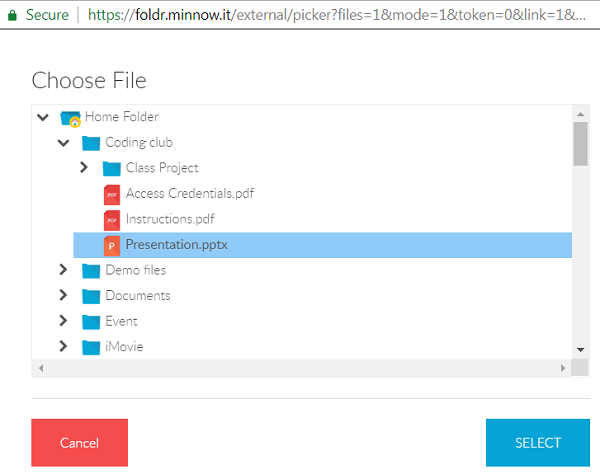
Clicking the button will open the picker
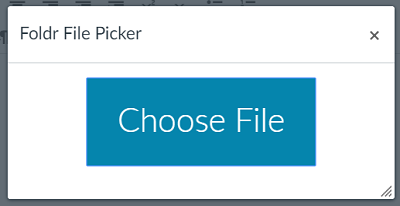 ~
~
The teacher can then select the storage location and file to upload
**
 **
**
Student View
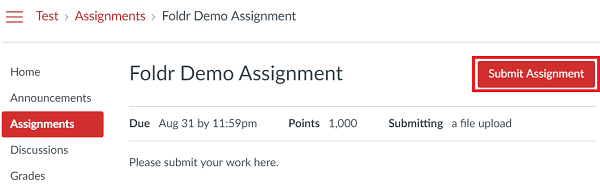
The student would click ‘submit assignment’
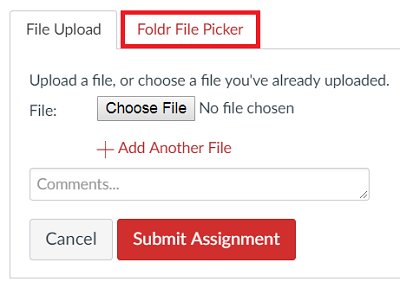
Then select the Foldr File Picker tab. The tab name is determined by the name used when adding the ‘app’ in Canvas settings.
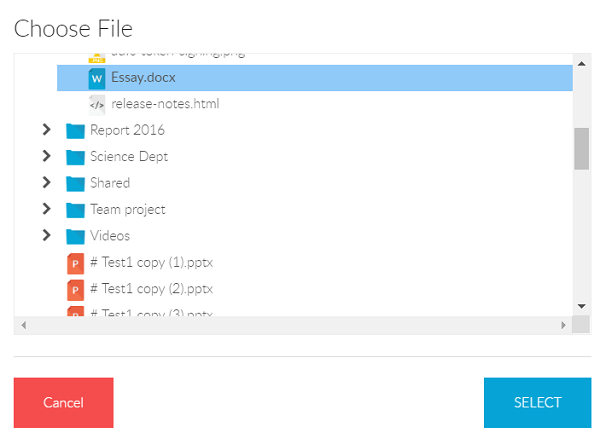
Click Choose File

Browse through the storage areas and choose the file to upload. Click Select
The file upload summary dialog is then shown. optionally add a comment and click Submit Assignment
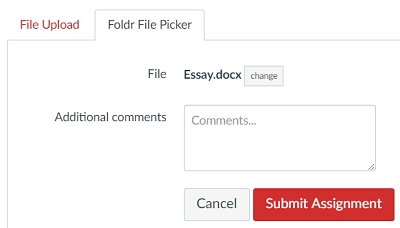
The file is then uploaded and a confirmation message is displayed to the student