
Creating and joining groups
When sharing content with several people you’d usually search for an existing group from your directory. If the right group doesn’t exist (for example, an ad-hoc project team that crosses department boundaries), you can create your own group inside Foldr instead. Foldr-created groups work the same way as directory groups when you share to them.
You can create and manage groups from the web app and the iOS app (4.3.0 and later).
Creating a group from the web app
-
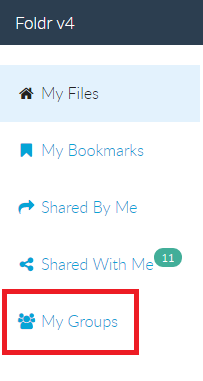
Click My Groups in the left-hand pane.
-
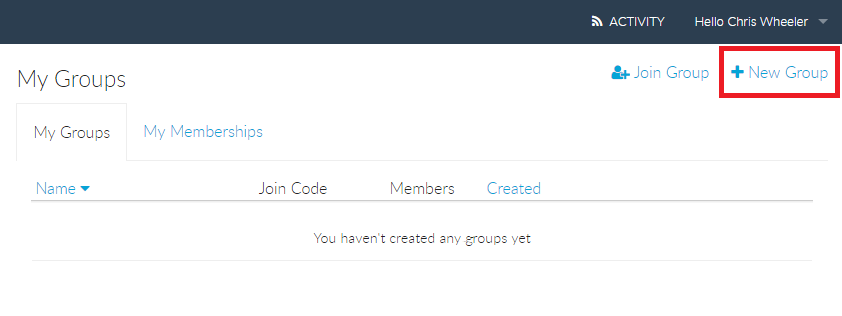
Click New Group.
-
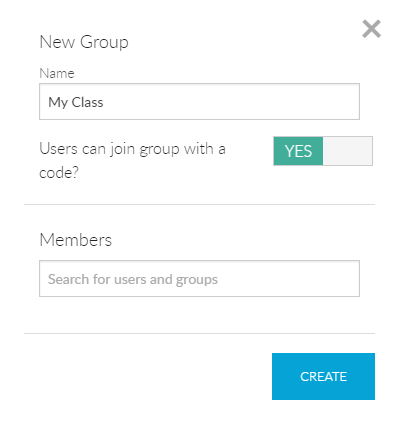
Give the group a name. Optionally toggle Allow users to join with a code to let people self-enrol via a join code. You can also add specific users or existing groups to Members at this point.
-
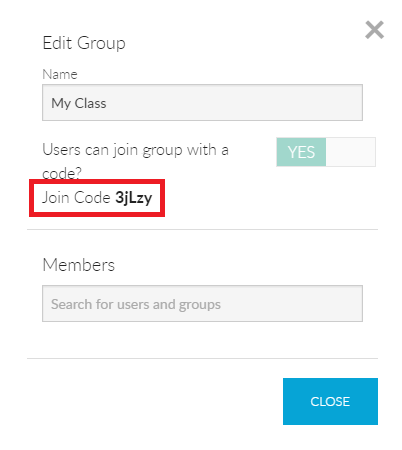
Click CREATE. If you enabled join codes, the code is shown.
-
The group now appears under My Groups with the join code (if any) and member count.
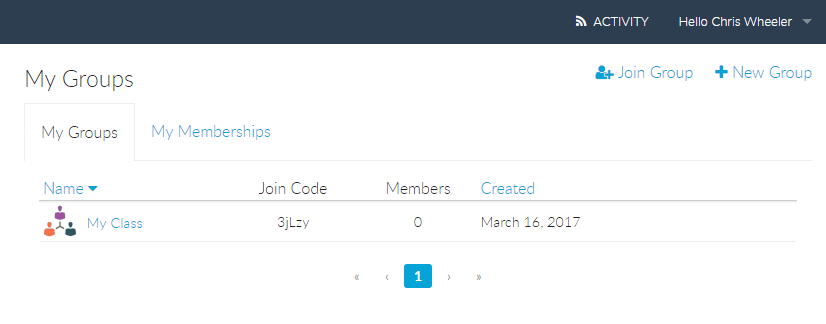
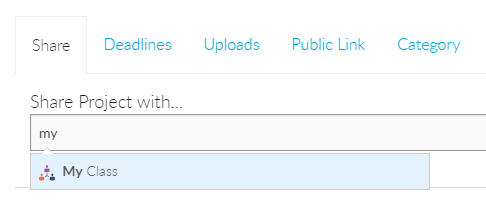
You can use the group when sharing content like any other group.
Joining a group from the web app
-
Click Join Group in the left-hand pane.
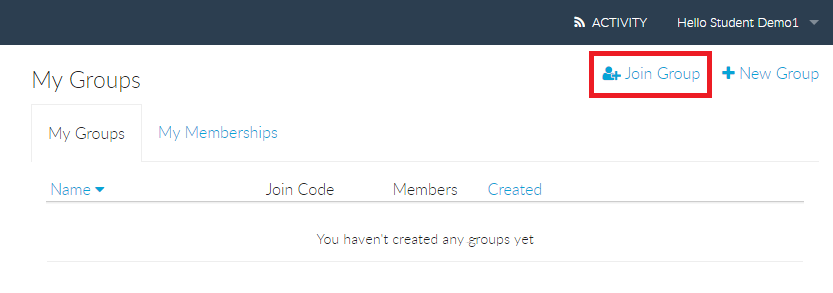
-
Enter the join code and click JOIN GROUP.
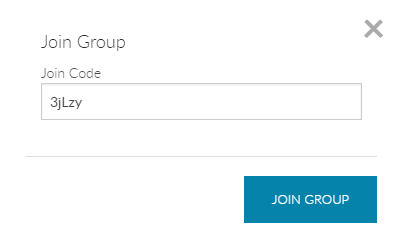
-
Click CLOSE.
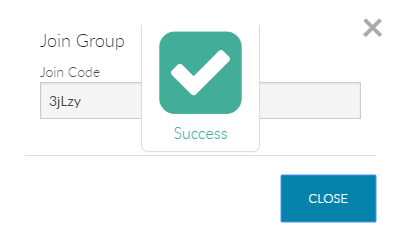
You’re now a member. To verify, open My Groups → My Memberships, where you can also see all content shared with that group.
What groups are good for
- Ad-hoc projects that don’t justify a directory group request to IT.
- Mixed-role teams drawing members from multiple existing groups.
- External collaboration spaces when paired with Foldr’s external-user features.
For internal sharing using these groups, see Sharing files and folders with others in your organisation.