
Custom Fields
Custom fields let you attach structured metadata to any file in Foldr (invoice number, due date, vendor, status, project code, owner, geographic coordinates) regardless of where the file is stored. The metadata is stored in Foldr (not in the file or the storage backend), so you can attach context to documents on storage that doesn’t natively support it (SMB shares, S3 buckets, anywhere).
Once a field is populated it drives:
- Search filters. Search the index by structured field values.
- Table views. See a sheet-style cross-file table of every value of a multi-value field across a search result set, with CSV export.
- Automation. MaSH scripts read and write field values via
mash.fields.*and the file’sfieldsproperty. - Document extraction. Captur populates fields automatically by reading the document’s content.
Data types
Foldr offers ten field types, each with its own input and validation behaviour:
| Type | What it stores | Notes |
|---|---|---|
| String | Short single-line text | Max 100 characters. Optional allowed-values list turns it into a controlled vocabulary. |
| Text | Long-form text | Multi-line. No length cap. |
| Number | Numeric value | Original numeric type. Use Number V2 for new fields. |
| Number V2 | Numeric value | The current numeric type. Better decimal handling and editor experience than the legacy Number. |
| Boolean | True / false | Renders as a switch. |
| Date | Calendar date and optional time | Configurable precision (year / month / day / hour / minute) and optional min/max range. |
| Location | Latitude / longitude pair | Stored as lat,lng. Useful for geo-tagging documents tied to a place. |
| Select | One option from a configured list | Like a String with allowed values, but type-enforced rather than free-text. |
| Signature | Captured signature image | Drawn or uploaded; stored as image data. |
| Delegate | A reference to a user, group, or “all” | Replaces the older “User” field type. Can be configured at field-creation time to accept user references, group references, or both. |
When creating a field, also decide whether it’s single-value (one entry per file) or multi-value (multiple entries per file: invoice line items, project tags, signatories). Multi-value behaviour interacts with permissions; see below.
Creating a field
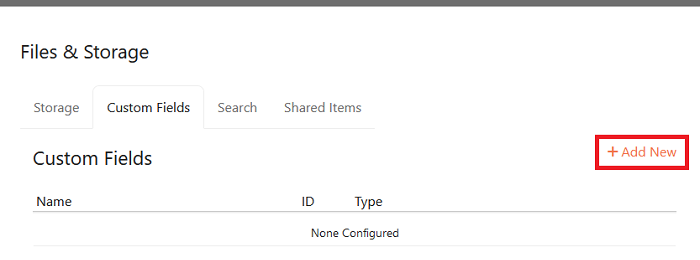
In Foldr Settings > Files & Storage > Search & Data > Custom Fields, click + Add New.
Give the field a name, choose the type, and decide whether it’s multi-value:
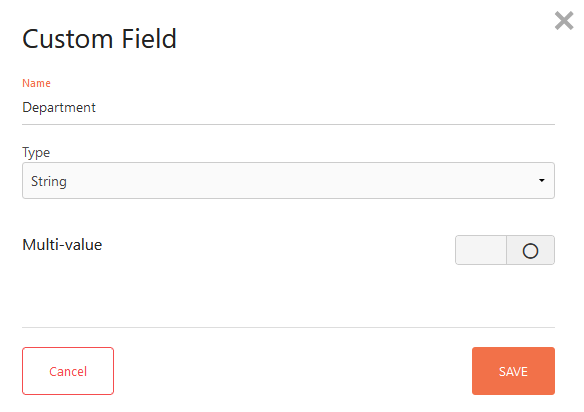
Click Save. The field appears in the list, ready to be assigned to one or more shares.
Assigning fields to a share
In Foldr Settings > Files & Storage, edit the share, click the Search & Data tab, then Custom Fields. Drag fields from the Available column to Configured.
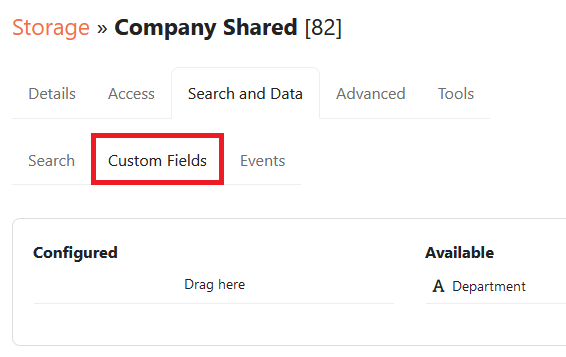
The order in Configured is the order the field shows to users in the file’s preview pane. Repeat for each share that should expose the field.
Permissions
Fields default to a low-privilege permission entry: the built-in Foldr Users group (everyone) with Show allowed and nothing else. Meaning everyone sees the field but no one can write to it. To allow editing, add a permission entry (or modify Foldr Users) granting the appropriate access.
The four permission types:
| Permission | Effect |
|---|---|
| Show | The field is visible to the user. Without this, they don’t see it at all. |
| Write | The user can populate the field with a value (single-value) or add the first entry (multi-value). |
| Edit | The user can change values that already exist. Without Edit, populated fields are read-only. |
| Append | Multi-value fields only. The user can add new entries without being able to edit existing ones. Useful for audit-style fields where each contribution is a record in its own right (signatures, sign-offs, comments). |
Permissions can be granted per-AD-user, per-AD-group, or per-Foldr-user. Common patterns:
- Read-only field for everyone, edit for finance: Foldr Users gets Show; Finance group gets Show + Write + Edit.
- Append-only signature log: everyone gets Show + Append; no one gets Edit.
- Sensitive field hidden from interns: Foldr Users gets Show + Write + Edit; Interns group gets a Deny rule on Show.
Multi-value fields and table views
Multi-value fields shine when a single document carries repeating data such as invoice line items, project tags, sign-off chain, or related references. Rather than cram a list into a Text field, declare a multi-value field and Foldr handles the n-instances-per-file storage natively.
In the file’s preview pane, multi-value fields render as a list with the configured permissions (add / edit / remove per row). For Captur-populated fields, each detected instance becomes a row.
Cross-file table view
When a search result set contains multiple files that share a multi-value field, the table view in the foldr-next file browser pivots the data into a flat sheet: one row per (file, field instance) pair, with the file’s other field values repeating contiguously per file. For Captur-padded data this means a search across “invoices from last quarter” produces a flat table of every invoice line across every matching file, directly comparable, sortable, filterable.
CSV export
The table view has a Download CSV button that exports the current pivot to a CSV file. The export includes every visible column for every row, ready to drop into a spreadsheet for further analysis or to send out as a report.
Field allowed values
For String fields, the Allowed Values tab on the field-permissions screen turns the field into a controlled vocabulary. Users see a dropdown rather than a text input. Select fields enforce this at the type level (no free-text path is available). Use String + allowed values when you want a controlled vocabulary that admins can extend; use Select when the list should be type-enforced and stable.
Date precision and range
Date fields can be constrained at the share-field level:
- Precision. Minute / Hour / Day / Month / Year. The picker only lets the user drill down to the configured granularity.
- Min / Max range. Set a lower and upper bound that the picker enforces (greyed-out dates outside the range).
Configure both in Files & Storage > Edit-Storage > Custom Fields > Edit-Field > Validation tab.
Required fields
Mark a field as Required in the Validation tab. Required fields are highlighted in red until populated, and Foldr won’t save other field changes on the same file until the required ones are filled in.
Captur-populated fields
When Captur is enabled on a share, the extraction pipeline reads each document and writes the extracted values back to that file’s custom fields. From the field’s perspective there’s no difference. Values populated by Captur look identical to values typed by a user.
A few practical points:
- Captur extraction runs as a system identity, so it bypasses per-user Write permission. The field’s permission entries gate what a user can do; Captur writes regardless.
- After Captur populates a field, normal Edit permission applies to subsequent user changes. If the user has Edit, they can correct an extraction; if they don’t, the Captur value stays.
- Multi-value fields work especially well with Captur (line items, multiple parties, addresses). Each extraction instance becomes a row.
For the extraction modes (intelligent, templates+intelligent), the OCR fallback chain, and licensing, see Captur.
Custom fields and MaSH
Custom fields are a first-class data surface for MaSH scripts:
- Read field values via
file.fields.<field_name>on a file object. - Write values via
file.fields.<field_name> = value(single-value) orfile.fields.<field_name>.append(...)(multi-value). - Search by field via
mash.fields.search(query)for cross-file queries against field data. - Find similar via
mash.fields.findSimilar(file)for “other documents that share this file’s metadata shape”.
Field changes from MaSH fire the Fields Changed event, which can trigger downstream automations. See MaSH custom fields and Events and triggers.
See also
- Captur. Automated extraction into custom fields
- Foldr Search setup. The search index that custom fields plug into
- MaSH custom fields surface. The scripting API for fields