
Dropbox integration
Foldr can present Dropbox storage to users in two ways:
- Personal accounts. Each user links their own Dropbox account from the Foldr web app or desktop app. Their files are then visible inside Foldr alongside their other storage.
- Shared accounts. The administrator publishes a single Dropbox account to multiple users via a static access token, with read/write permissions controlled in Foldr.
The same Dropbox developer-console setup is used for both. After the developer-console steps, follow either the Personal or Shared branch below.
Configuring Dropbox to allow API access from Foldr
-
Sign in at https://developers.dropbox.com with the Dropbox account that will own the integration. This can be a dedicated administrative account; for shared-account use, sign in as the account you intend to share.
-
Click App Console (top right).

-
Click Create app.
-
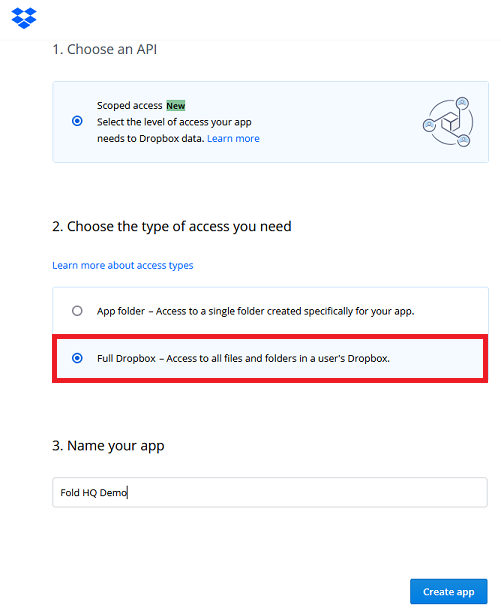
Select Scoped access, then Full Dropbox – Access to all files and folders in a user’s Dropbox, give the app a name, and click Create app.
-
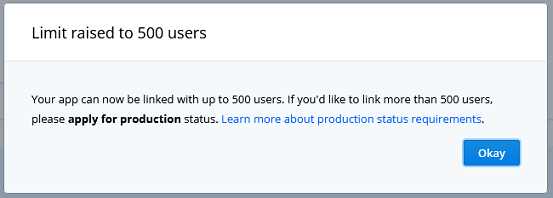
By default the app allows only one user to connect through the API. Click Enable additional users to raise the limit to 500 users. This is what allows multiple users to link their own Dropbox accounts. If you need more than 500 users, click Apply for production and follow the prompts. There’s no functional difference between development and production status beyond the user limit.
-
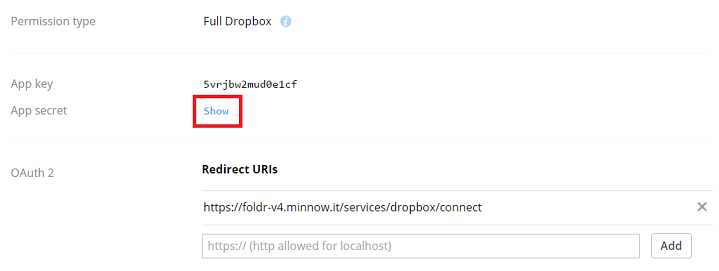
Click Show to reveal the App secret. Copy both the App key and App secret. You’ll need them shortly.
-
Set the Redirect URI to the public address of your Foldr installation with
/services/dropbox/connectappended.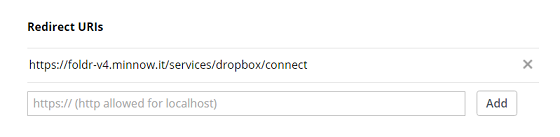
-
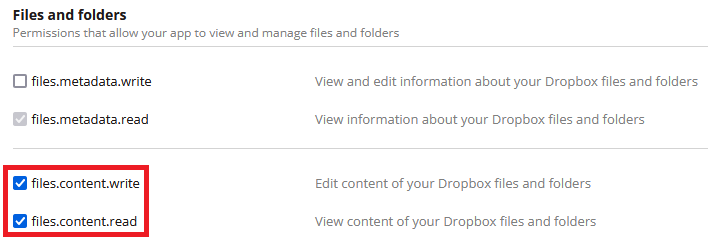
Open the Permissions tab and enable the following under Files & Folders:
files.content.writefiles.content.read
Click Submit at the bottom of the screen.
Personal accounts (each user links their own)
In Foldr, go to Foldr Settings > General > Service Accounts and click + Add New. Set Type to Dropbox, paste in the App Key and App Secret from step 6 above, leave the Access Token field blank, and click Update.
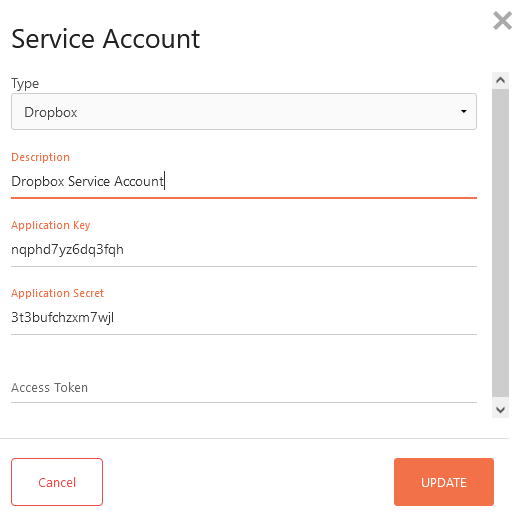
The Access Token must be left blank for personal-account linking. It’s only used for the shared-account flow below.
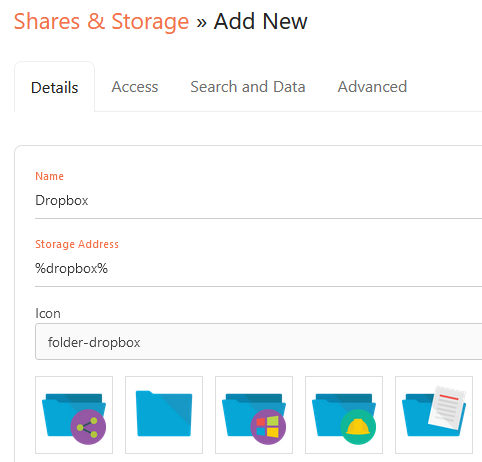
Then in Foldr Settings > Shares & Storage, click + Add New to create a Dropbox storage item:
- Name. E.g. “Dropbox”
- Storage Address.
%dropbox% - Access tab. leave the Service Account unconfigured
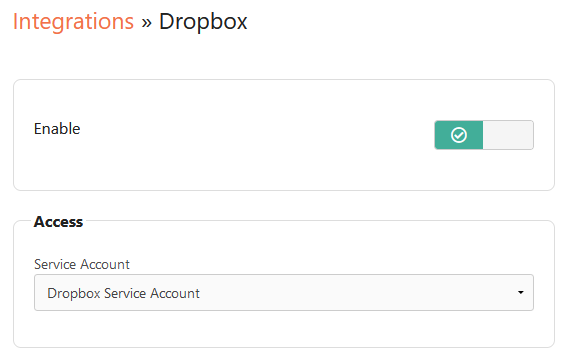
Finally enable the integration: Foldr Settings > Integrations > Dropbox, switch on Enable, and select the service account you just created.
How users link their account
After setup, users can link their Dropbox account from either the web app or a desktop app. The link is shared across all Foldr apps once made.
Web app. Sign in and click Dropbox under My Files. Foldr prompts to link the account, opens a new tab to dropbox.com, and the user signs in and grants permission. Once linked, Dropbox files appear inside Foldr immediately.
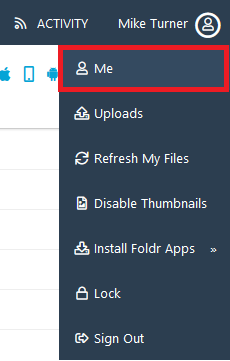
The link can also be made (or removed) from the Me menu in the top-right of the web app, on the Services tab.
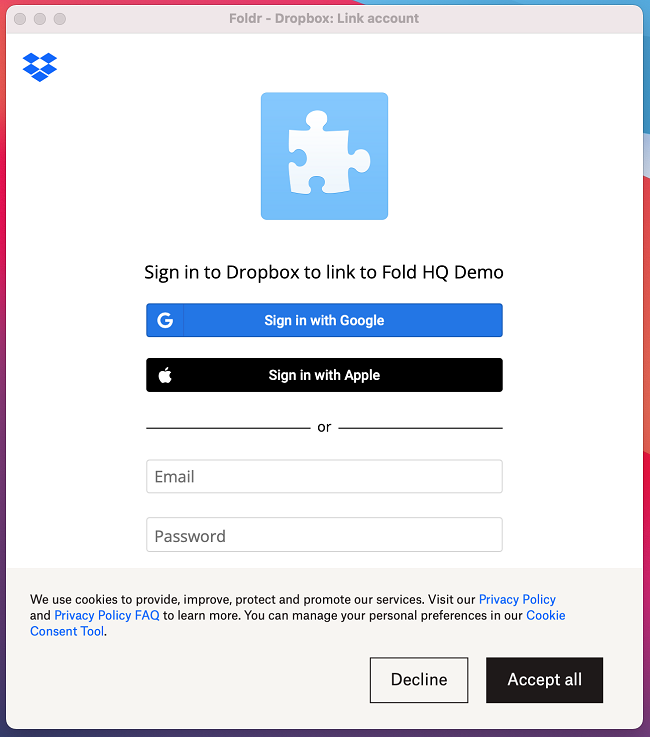
Desktop apps. Inside the Foldr drive, navigate to My Files > Dropbox and double-click the Link account shortcut. The same Dropbox sign-in flow runs and the account is linked. The desktop apps also expose Services > Dropbox in their settings for unlinking.
Shared accounts (one Dropbox account presented to many)
Use this flow when you want a single Dropbox account exposed to multiple users with administrator-defined permissions.
-
Create or pick a dedicated Dropbox account to use as the shared resource.
-
Complete steps 1–7 of the developer-console setup above (Create app → Redirect URI). Skip the user-limit increase if you only need the shared resource.
-
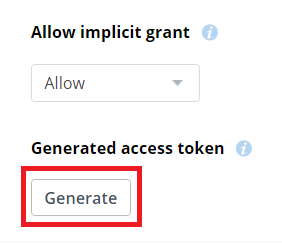
On the app configuration screen, click Generate to create an access token, and copy the value.
-
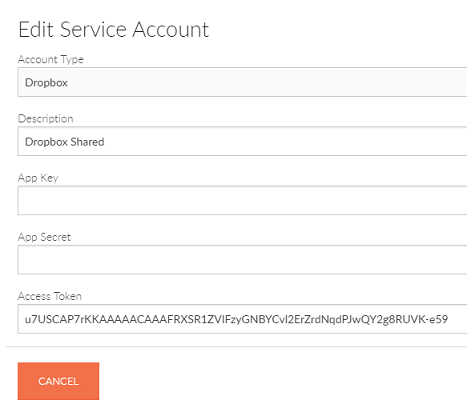
In Foldr Settings, create a new Dropbox service account (General > Service Accounts), paste the access token into the Access Token field, and leave the App Key and App Secret blank. Click Save.
-
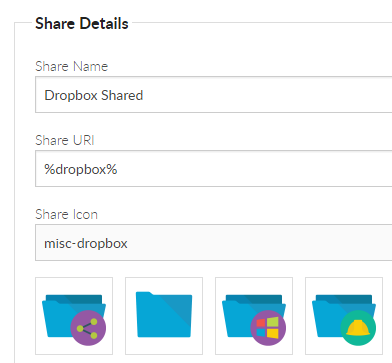
Create a new share in Foldr Settings > Shares & Storage:
- Storage Address.
%dropbox% - Access tab. Select the service account created in step 4
- Use service account for all access. Must be enabled
- Storage Address.
-
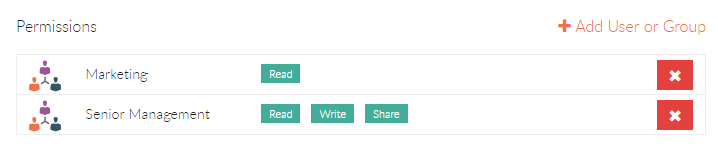
Use the Permissions area at the bottom of the share screen to control who can access the shared Dropbox account. By default Foldr Users (everyone) have read and write; replace this with specific Active Directory users or groups, and use read-only if appropriate.
Editing, bookmarks and sharing
Dropbox storage in Foldr. Personal or shared. Behaves the same as any on-premises share. Users can edit documents in their locally installed Office applications or in the browser via Office Online or Google. All sharing features (hand-out, hand-in, manage) are available, and files and folders can be bookmarked.