
Configuring and Enabling Secure Links for Users
Secure Links
Beyond sharing with others inside the organisation, users are also able to securely share files and folders outside the organisation using short URLs. The short URLs can either be open and require no authentication (called Public Links) or ‘Secure Links’ can be created which allows the user to restrict access to specific email addresses. i.e. The recipient of the shared items is required to authenticate before they can access any shared items.
With Secure Links, external users receive email notifications as items are shared with them, and an internal account is automatically created for them on the Foldr server itself. External users are prompted to create a password the first time they try to access a shared item from Foldr via a Secure Link. External users can optionally be given the permission to be able to upload to shared folders. External user password’s can be reset either by the administrator or by the user using a ‘forgot password’ link on the web app sign-in page. Where a user requests a password reset, a verification code is sent to the external user’s email address which must be supplied when they go through the reset process.
Folio (optional licensed add-on)
If your Foldr server has a Folio licence, external users can sign into the main Foldr URL with the credentials they set up here, instead of always going through the per-link email URLs. Folio also unlocks per-link custom fields and inbox signature removal. See the Folio article for the full picture.
Server Configuration
1. Configure your email server settings within Foldr Settings > Integrations > Email. This is covered in a dedicated KB article here
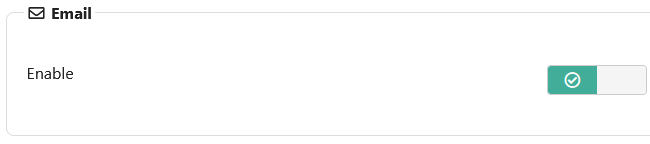
2. Enable Email Notifications
within Foldr Settings > Notifications > Email and click Save
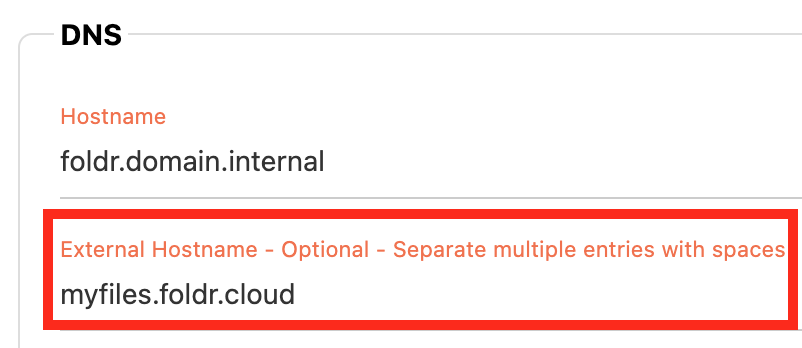
3. Configure the External Hostname.
Within Foldr Settings > Appliance > Network configure the external hostname to the value of the Foldr server’s public / external address.
The external hostname value is used in the email notifications sent to users to populate the links to shared items. Without configuring the External Hostname, the email will contain no link.
4. Allow the built-in Foldr External Users group to sign in.
Within Foldr Settings > Security > Permissions > Use Foldr (top option) click + Add User or Group
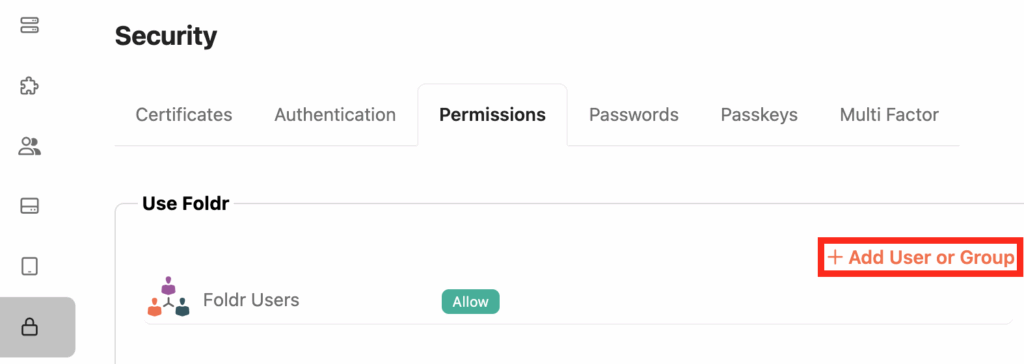
Search for the built in group Foldr External Users. Select from the picker and choose Allow. Click Update
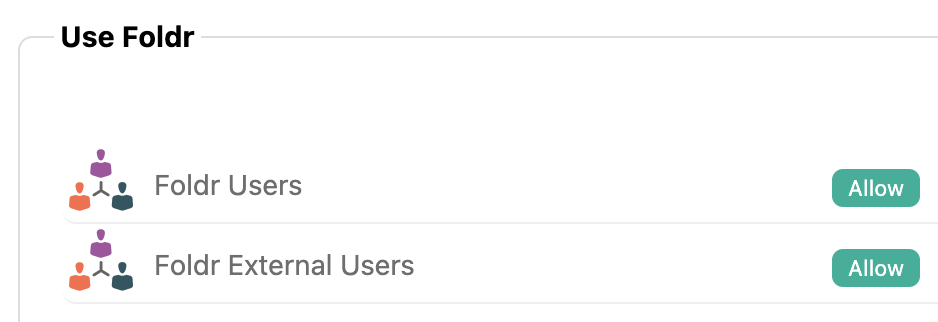
Click Save Changes.
5. Enable the Secure Links permission
Within Foldr Settings > Files & Storage, edit the storage item in question and select the Access tab.
Edit an object in the permissions section and click the Sharing tab and enable the Create Secure Links permission for the users that require this permission (those who need to share files/folders).
NOTE: Secure links require the other sharing permissions below to also be granted. These are required as a pre-requisite for the Secure Links feature.
Share with other user = Allow
Create public links = Allow
In the example below, the built in group ‘Foldr Users‘ was granted the permission, and this refers to everyone that has access to this storage location.
Alternatively, you can grant sharing permissions to specific users or groups if required.
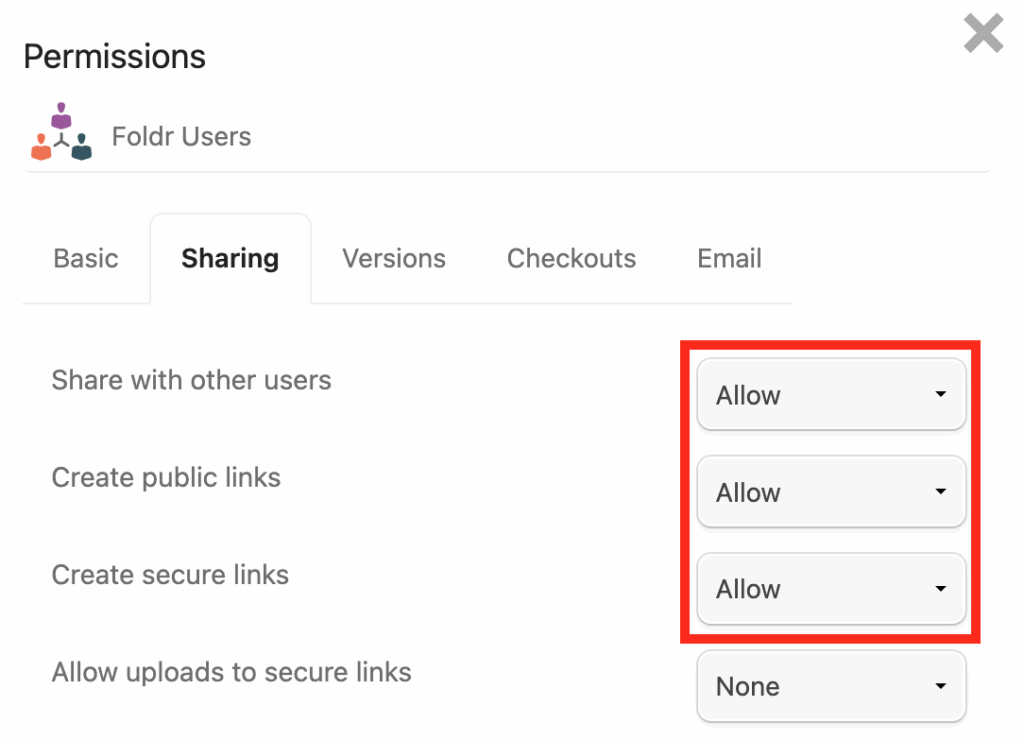
If the external users require the ability to upload files to shared folders via secure links, enable the additional permission labelled Allow uploads to secure links.
Click Update
The permissions panel will be updated to reflect the sharing permissions changes selected.
Click Save Changes.
If this permission to allow upload to secure linked is granted, an additional toggle will be available to the user sharing the folder to allow uploads to that specific folder.
- For SMB file shares, on the Access tab select a service account with at least Read permission on the backend share. If you’re allowing external uploads, the service account also needs write permission. Use the UPN username format (
[email protected]), notDOMAIN\username. Full service account requirements are in Configuring service accounts.
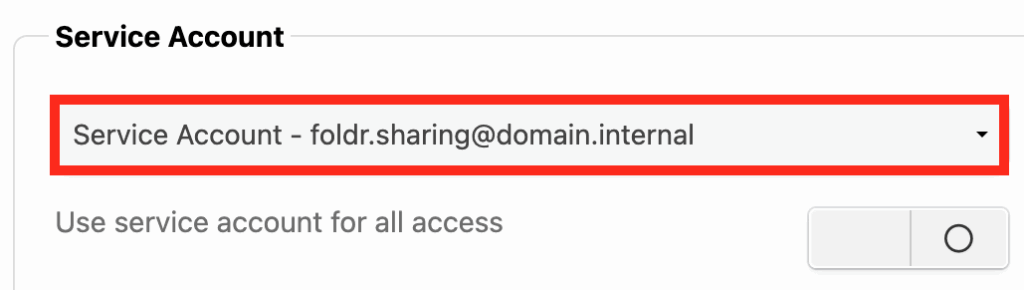
7. Click Save Changes.
The configuration steps are now complete, any users that have been granted the sharing permission should be able to share files/folders externally and securely with others by their email address.
Using Secure Links – Web App Example
To share a folder (or file) with an external user, use the context menu in the web app or click the inline sharing button to bring up the menu and select Public Link:
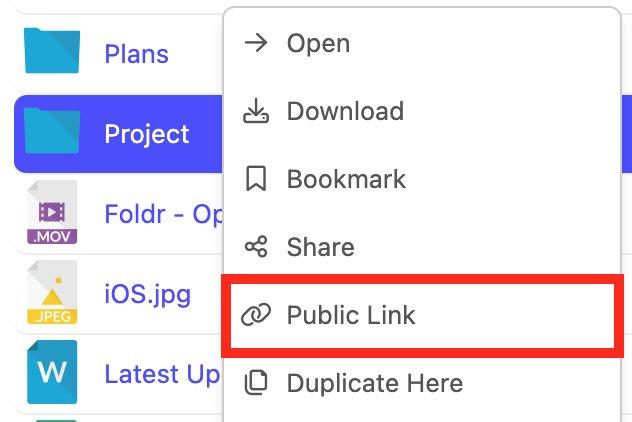
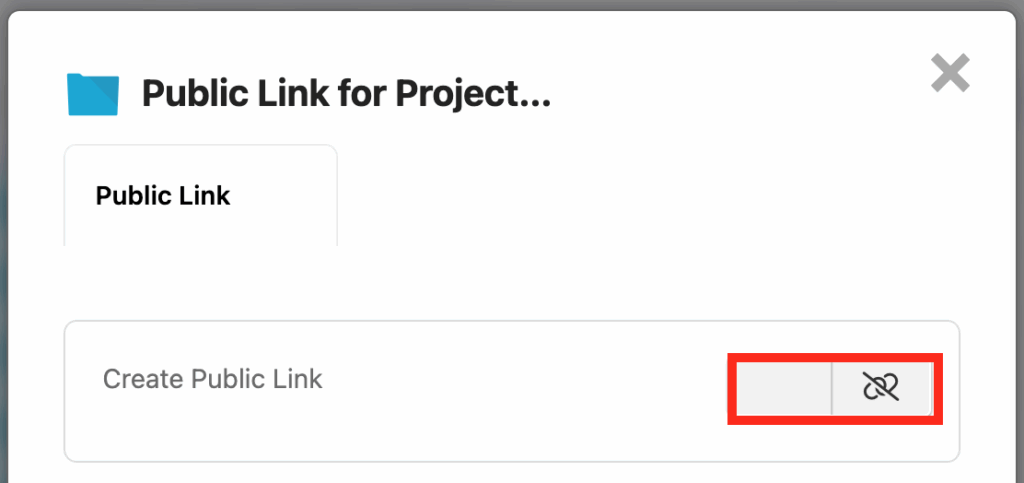
Enable the Create Public Link toggle. Additional tabs will become accessible when this switch is enabled.
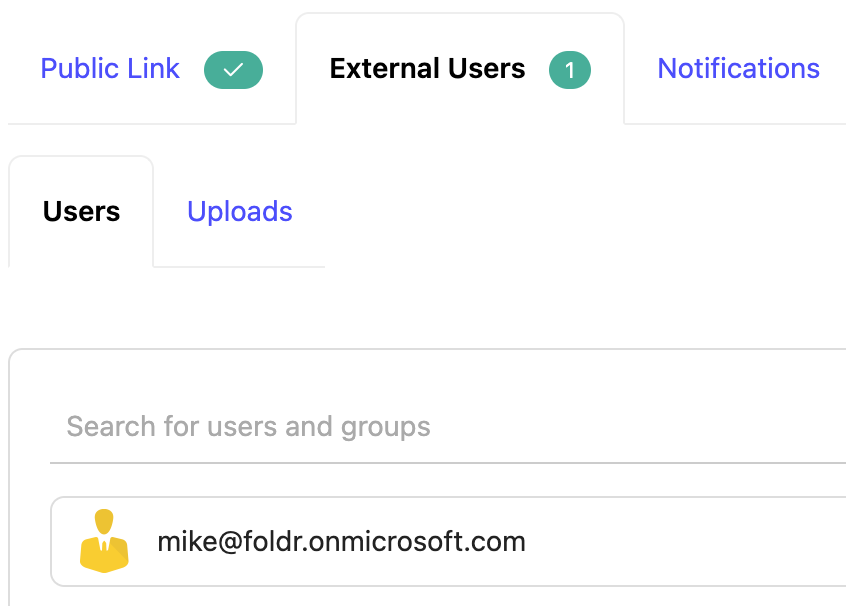
Click the External Users tab
Enter one or more external email addresses for external users that you wish to share the folder (or individual file) with.
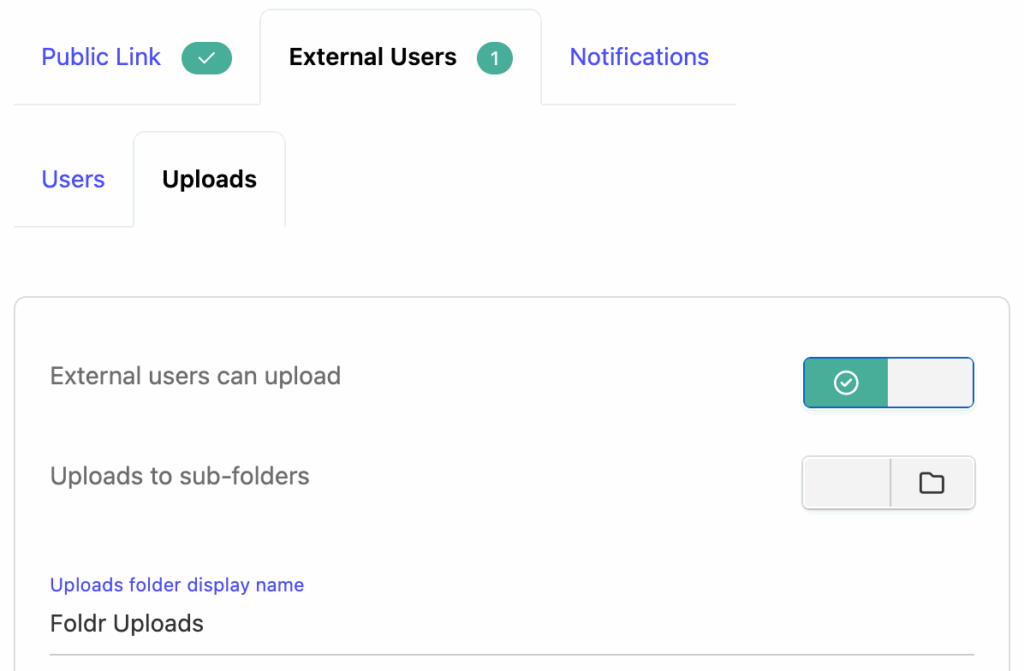
Optionally enable the toggle External users can upload in the Uploads tab
Uploads are organised automatically within a dynamically generated Foldr Uploads directory in the root of a shared folder and additional subfolders are created for each external user that uploads files.
Click UPDATE.
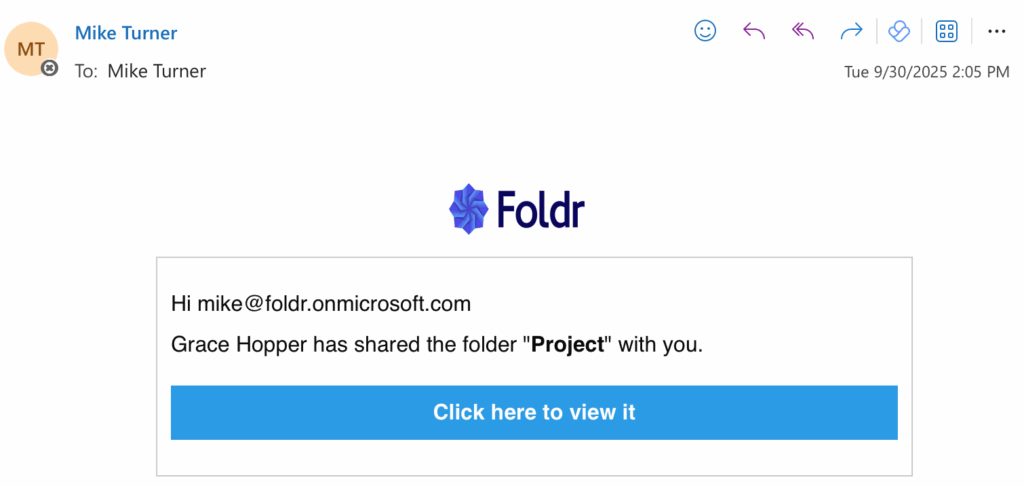
An email will be sent immediately to the external recipients containing a button (Click here to view it) that will take them directly to the shared resource.
When the user clicks the button in the email they will be taken to the public link where they will need to create a password. Note the verification code will be automatically filled in.
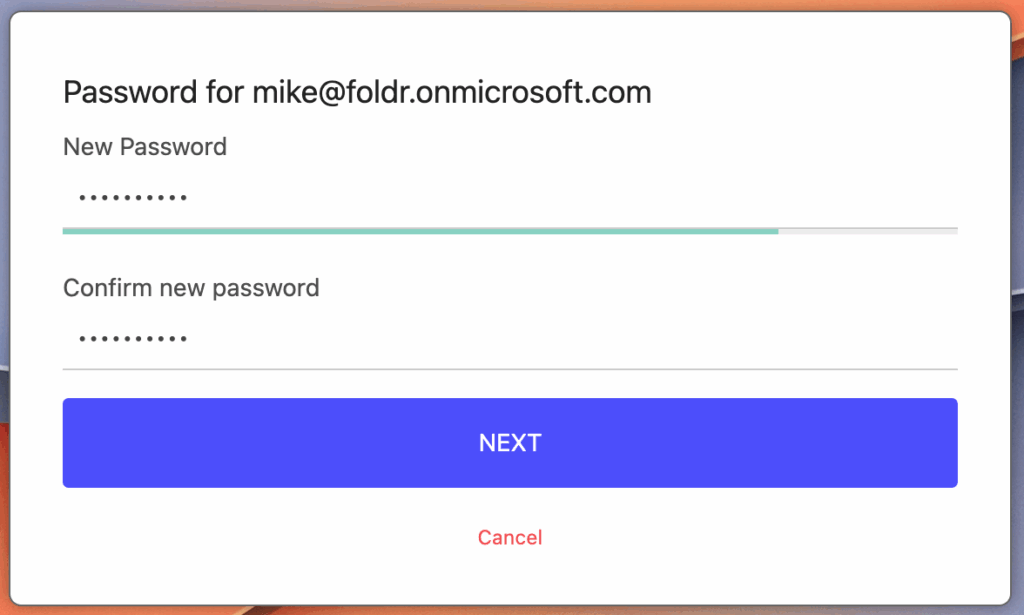
Set the password as required and click NEXT. An (external) account is created on the Foldr server and the password is saved. This password can then be used to access any future items that are shared on the server. The web app will now automatically sign in and display the shared files/folders accessible using the public link.
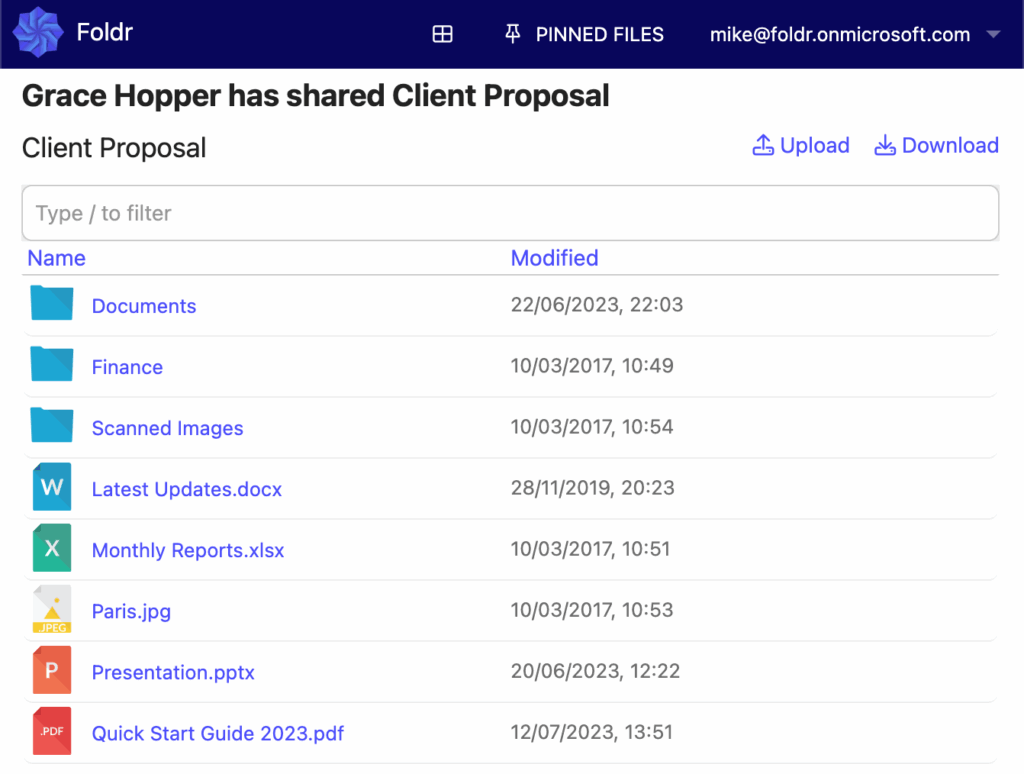
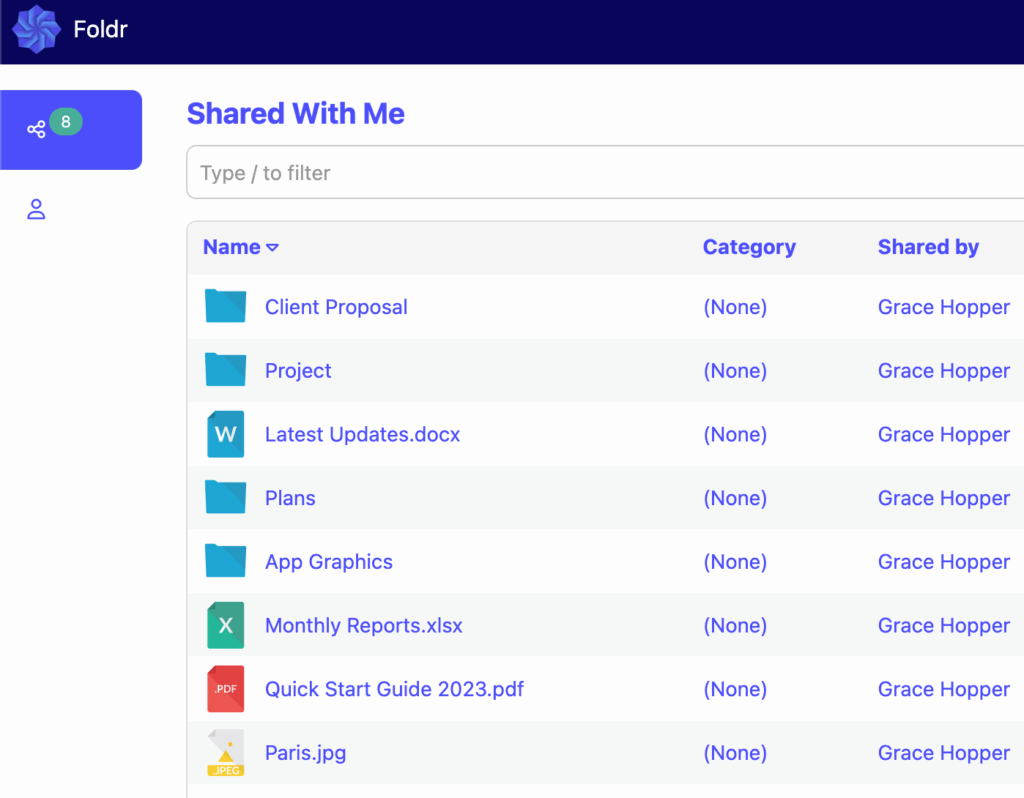
(Note that all sub-folders inside the example folder ‘client proposal’ are navigable)
If the user has the ability to upload to the shared folder, the shared item will have a coloured banner at the top to show it is a submission folder. To upload the user can drag files into the browser or use the Upload button (top right)
Changing and Resetting External Users Passwords
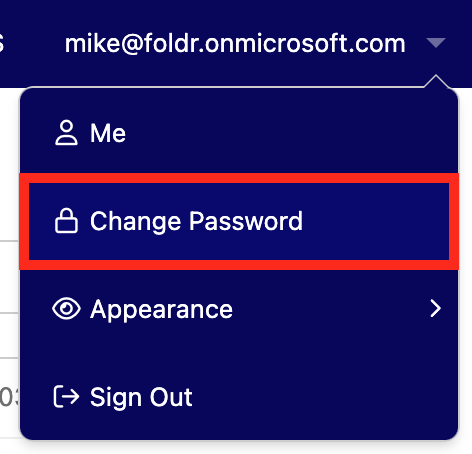
Should an external user wish to change their password, this can be done at any time while signed into a secure link, using the top-right menu.
If an external user forgets their password, they can reset it using the ‘Forgot Password‘ link on the server after supplying their email address. Alternatively, the Foldr administrator can reset it within Foldr Settings > Users & Groups.
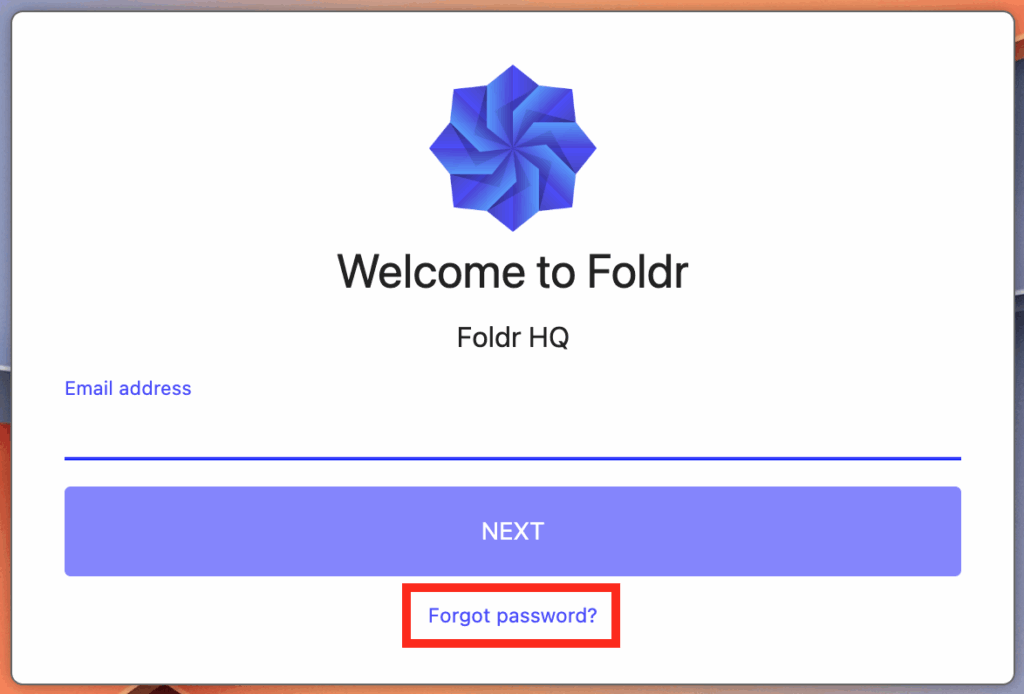
Entering the username (email address) for the external user. Click Next 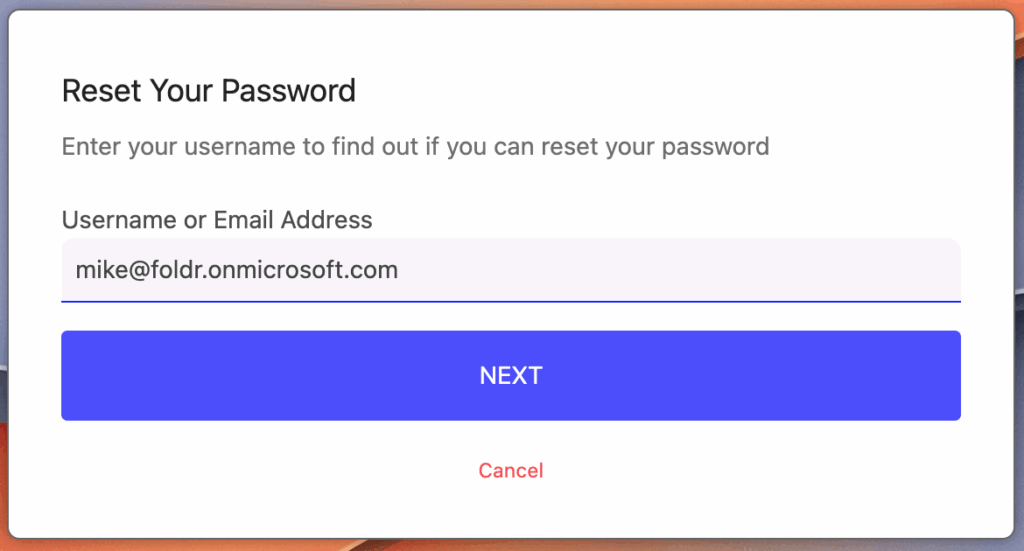
Select Directory Email Address and click **Next
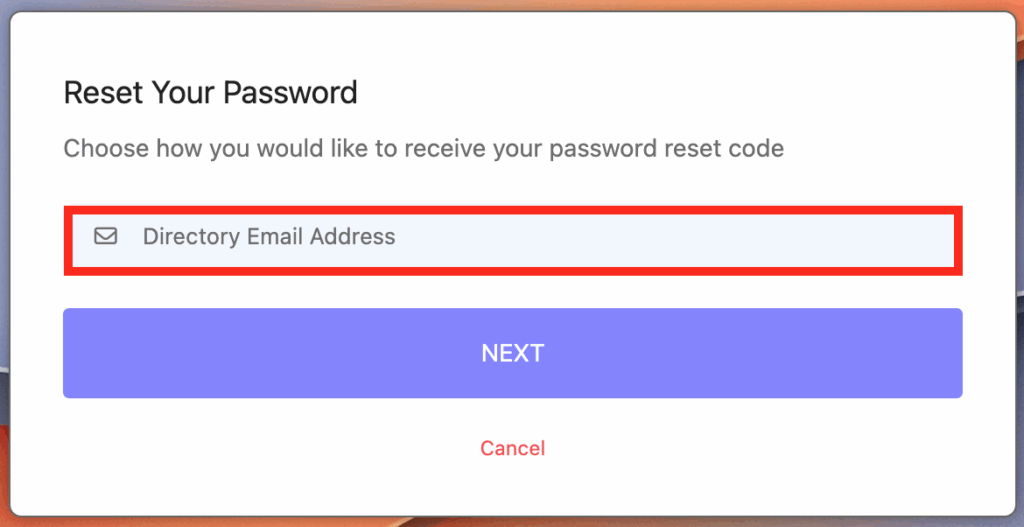
**
An email will be sent containing a reset / verification code
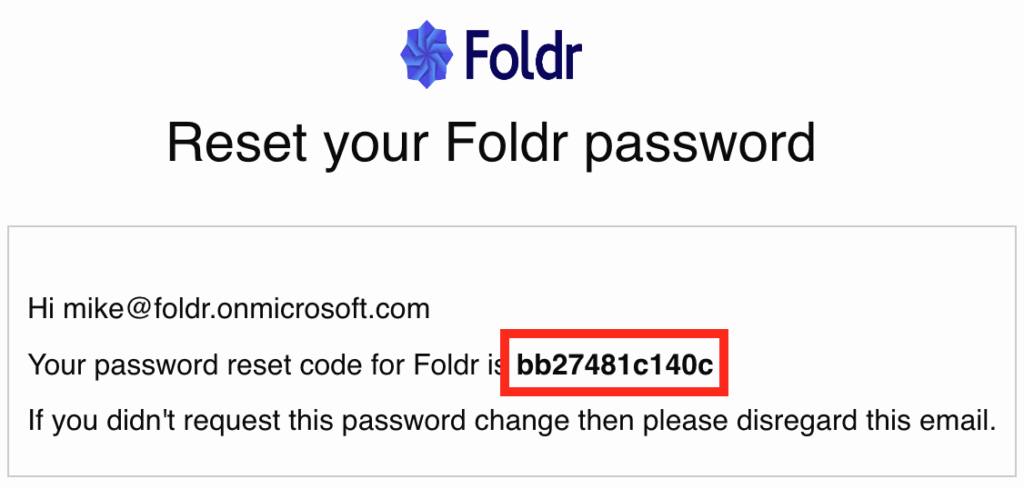
Enter the verification code and then supply the new password, confirming it as required. Click Next and the password will be changed.
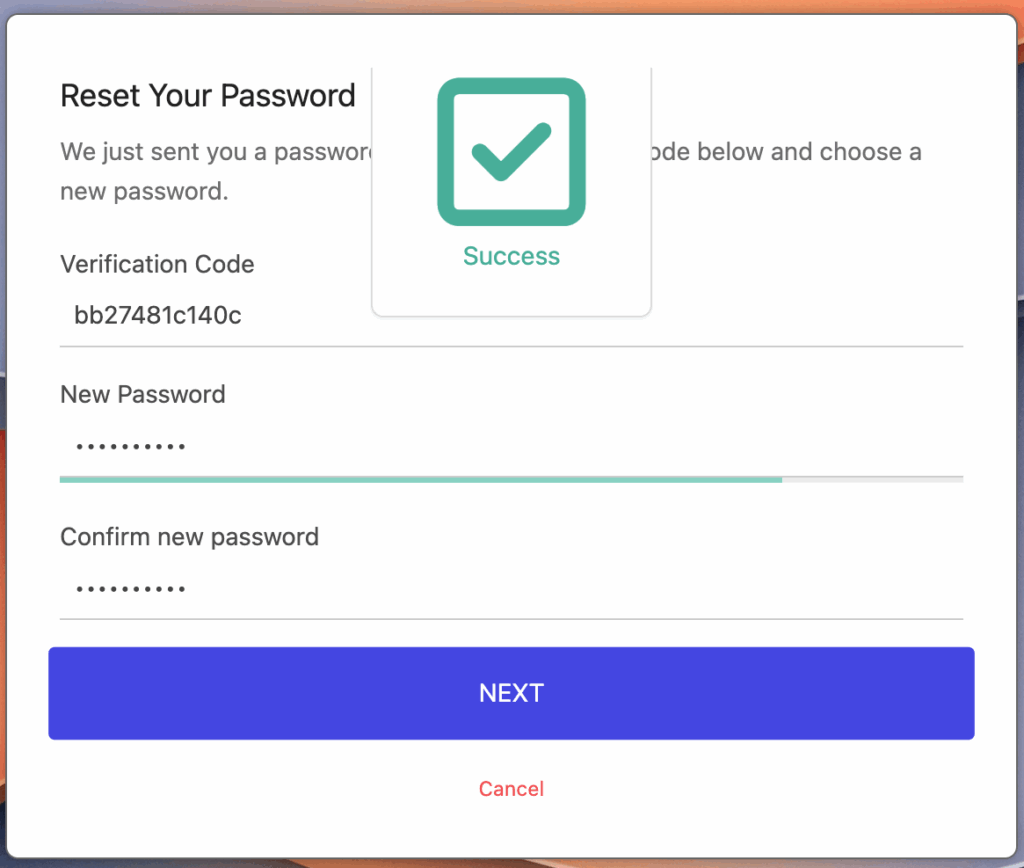
An email will be sent to the external user’s email address containing a verification code.
Click NEXT – if the verification code is correct and the passwords match the user will see a success message. They can now sign into public links using the username (email address) and their password to access shared items.
External users created via Secure Links can sign in directly to the main Foldr web app only if a Folio licence is active. Without Folio, they must use the per-link URL from the email notification.