
Enabling thumbnails for image and PDF files
Foldr can generate previews for common image formats (JPEG, PNG, GIF, HEIC) and PDF files, and serve them as thumbnails in the web, iOS, and macOS apps. Thumbnails are off by default; an administrator turns them on per share in Foldr Settings, and users opt in per app.
Enabling thumbnails on a share
-
Sign into Foldr Settings as an administrator.
-
Open Files & Storage.
-
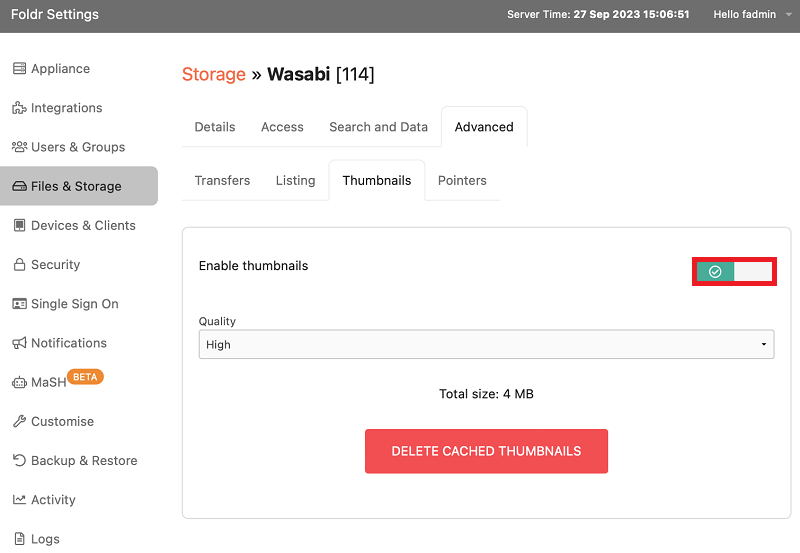
Pick the share you want thumbnails on, click Edit.
-
On the Advanced tab, set Thumbnails to one of the three quality levels:
- Low: small files, fastest generation, blocky on Retina displays.
- Medium: balanced; the right default for most shares.
- High: sharper but bigger files; appropriate for image-heavy creative shares.
-
Save the share.
Thumbnails generate the first time a folder is opened in the web app and are cached server-side after that. New files have their thumbnails generated on first view; deletions are cleaned up automatically.
Per-app behaviour
-
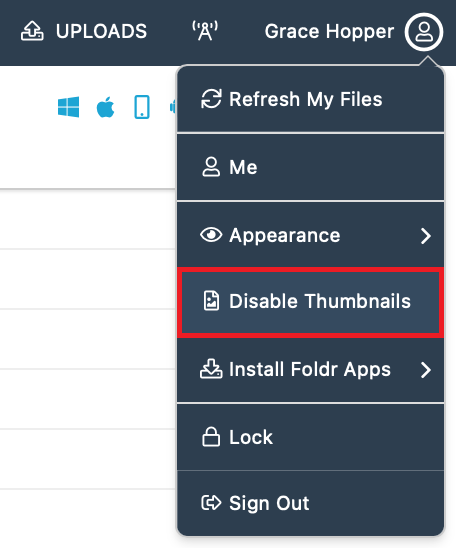
Web app: thumbnails appear automatically once enabled on the share. Users can hide them via the top-right menu if they prefer the file-list view.
-
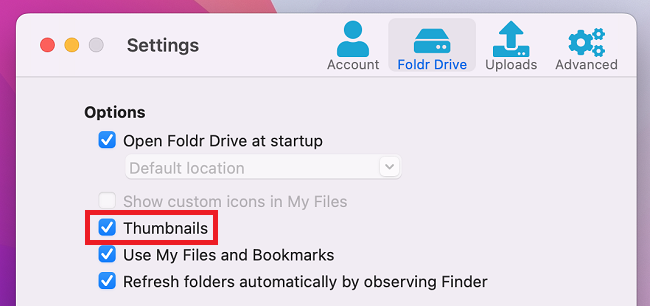
macOS app: users enable thumbnail support in the Foldr menu bar Settings to see them in Finder previews.
-
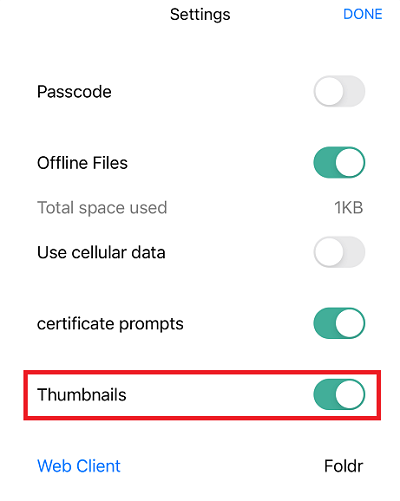
iOS app: users enable thumbnail support in the Foldr iOS app Settings.
-
Windows app: Windows uses Explorer’s own thumbnail cache rather than the Foldr server cache; there’s nothing to enable on Foldr’s side.
-
Android app: thumbnails appear automatically when the share has them enabled.