User activity logs: configuring, filtering, and exporting
Foldr logs every user action (sign-in, file open, share creation, link click, etc.) and retains the log for 6 months by default. The retention window is configurable up to 24 months, and the set of logged actions can be tightened or expanded per category.
Where to find the logs
Open Foldr Settings → Activity (bottom of the left-hand pane).
Filtering the log view
The Activity tab supports filters across the top of the table: user, share, action type, date range. Combine them to narrow to the question you’re investigating (“everything alice@ did in the last week”, “all share-link creations on the Sales share”).
Exporting
The Activity tab includes an export option that downloads the currently filtered view as a CSV. Useful for handing the result to compliance / auditors, or for taking a longer-term snapshot before old entries roll off the retention window.
Configuring what’s logged
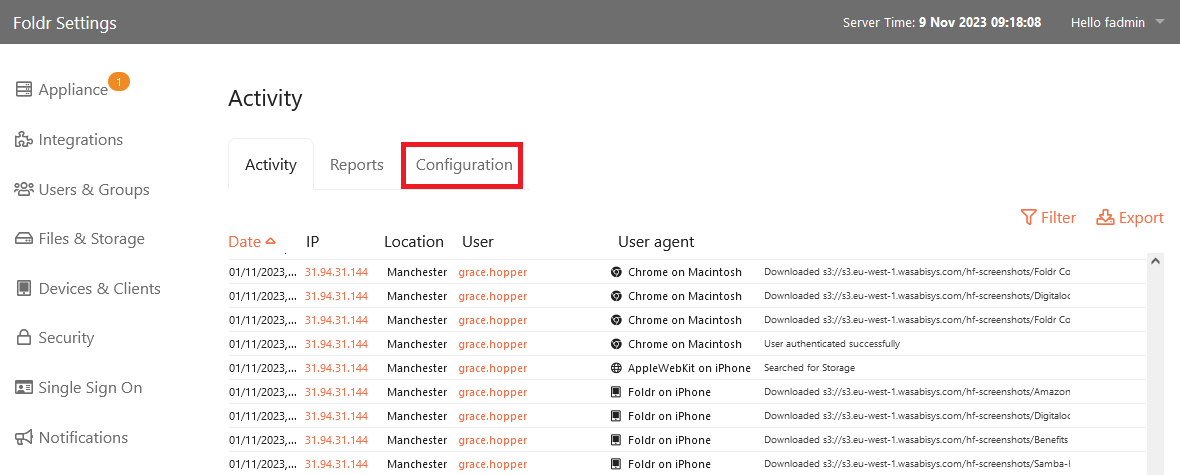
Open Foldr Settings → Activity → Configuration to control which actions are captured.
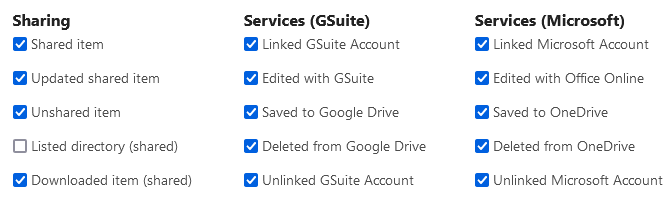
Tick or untick each action; ticked actions are logged, unticked are not. Note that directory listings are not logged by default, because listing a folder generates a high volume of low-information events that would crowd out more useful entries.
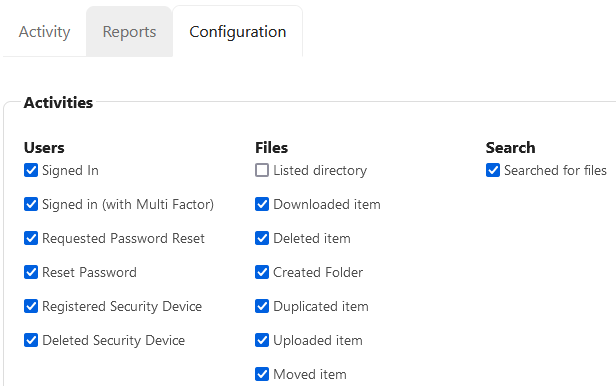
The Configuration tab is grouped into sections covering different parts of the server (file actions, sharing actions, authentication events, etc.) so you can adjust scope without scrolling through every action.
Retention period
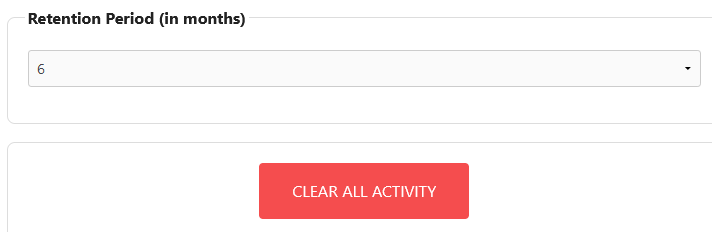
At the bottom of the Configuration tab is the retention slider, with a range of 1 to 24 months. The default is 6 months. Setting it shorter saves disk space; setting it longer is useful for compliance regimes that require longer audit trails. There’s also a button to clear all existing log entries on demand, in case you need to start fresh.