
Legacy macFUSE setup on macOS
You probably don’t need this article. Since Foldr for macOS 2.0.3 (November 2023) the default file system has been Apple File Provider, which does not require macFUSE, kernel-extension approval, or recovery-mode boot. The steps below only apply if you have explicitly switched the app to macFUSE mode.
When the app is running in macFUSE mode, it depends on a third-party kernel extension (macFUSE) being installed and approved by macOS. On Apple Silicon Macs that approval requires a one-time recovery-mode change to the system’s security policy. Once approved, the Foldr drive mounts in Finder as expected.
Initial setup on Apple Silicon (M1 and later)
Custom kernel extensions are blocked by default on Apple Silicon. To use macFUSE, the user has to enable user-managed kernel extensions in the Startup Security Utility (a one-time operation).
-
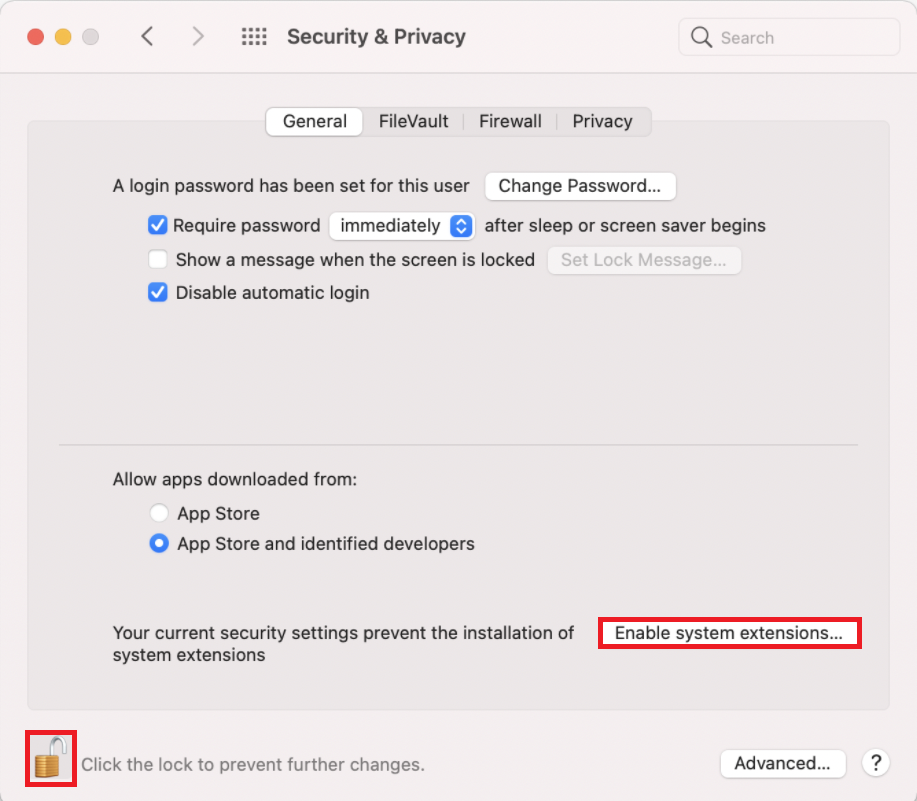
Start installing the Foldr app. When the kernel-extension prompt appears in System Preferences → Privacy & Security, click the padlock to unlock if needed, then click Enable system extensions….
-
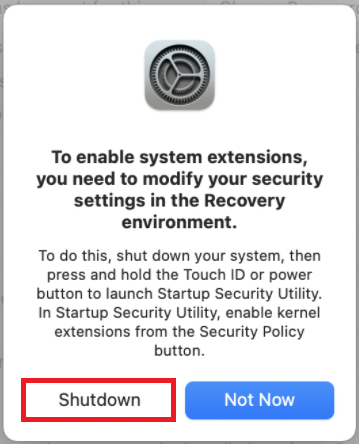
macOS will tell you the system needs to shut down to apply the change. Click Shutdown.
-
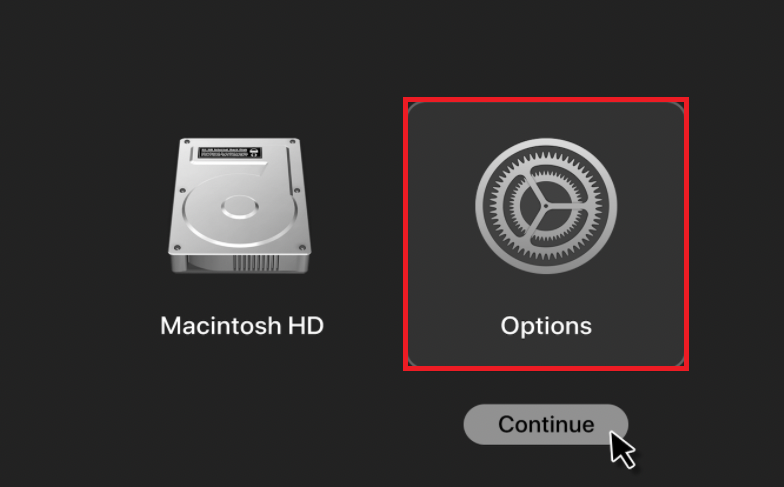
Boot into the Startup Security Utility: press and hold the Touch ID button or Power button until you see “Loading startup options”. Click Options → Continue.
-
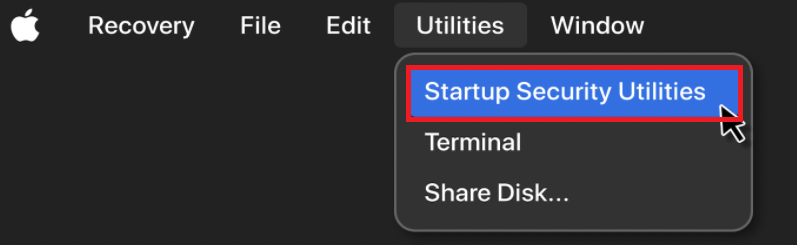
From the recovery menu, select Utilities → Startup Security Utility.
-
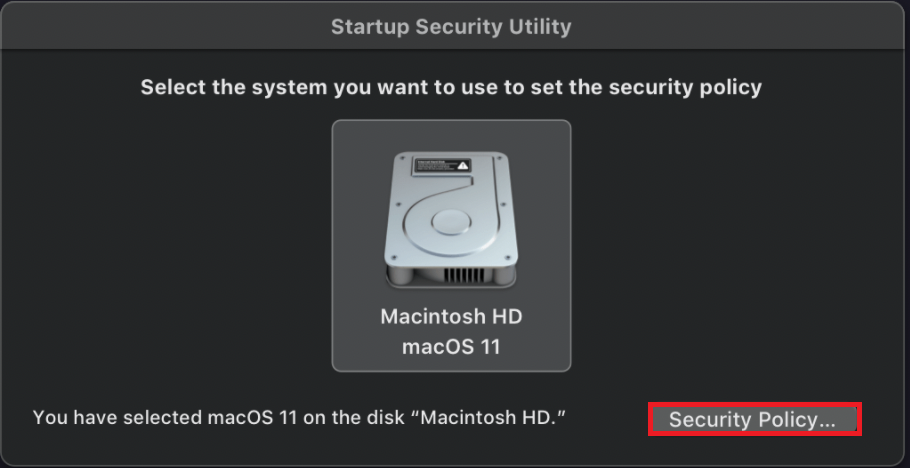
Select the system drive where Foldr is being installed and click Security Policy….
-
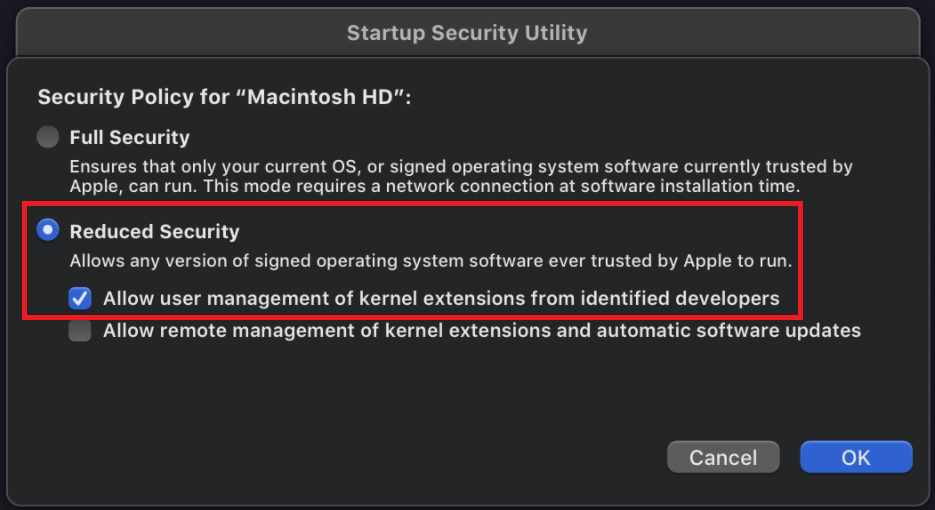
Choose Reduced Security, tick Allow user management of kernel extensions from identified developers, and click OK. Restart the Mac.
-
After the system boots, launch the Foldr app again. The kernel-extension prompt re-appears.

-
Click Open Security Preferences (or open System Preferences → Security & Privacy directly), unlock if needed, switch the radio to App Store and identified developers, and click Allow for the macFUSE extension by Benjamin Fleischer.


The extension is now approved. Sign into the Foldr app. The drive mounts in Finder.
Troubleshooting
”Allow” button is missing or doesn’t work. Extension is stuck blocked
If macOS reports the FUSE extension is blocked and either the Allow button never appears in Security & Privacy, or you click it and the Foldr app keeps reporting macFUSE isn’t installed, the system’s kernel-extension policy database is in a bad state. The fix is to remove the existing approval, clear the kernel cache, and reinstall macFUSE.
Step 1. Boot into Recovery and unapprove the existing extension.
Hold Cmd-R (Intel) or the Touch ID / Power button (Apple Silicon) at startup to enter Recovery. Open Terminal from the Utilities menu and run:
cd /Volumes/Macintosh\ HD/
./usr/bin/sqlite3 ./private/var/db/SystemPolicyConfiguration/KextPolicy
sqlite> SELECT * FROM kext_policy;
You’ll see something like:
123456|com.github.osxfuse.filesystems.osxfuse|1|Benjamin Fleischer|1Note the team ID at the start (123456 in this example) and remove that row:
sqlite> DELETE FROM kext_policy WHERE team_id = '123456';
sqlite> .exit
Reboot the Mac.
Step 2. Clear and invalidate the kext cache.
Quit the Foldr app from the menu bar. Uninstall macFUSE via System Preferences → FUSE → Remove. Then in Terminal:
sudo kextcache -invalidate /
sudo kextcache --clear-staging
(The first command can take a while.)
Step 3. Reinstall macFUSE and approve the extension cleanly.
Download the latest stable macFUSE from https://osxfuse.github.io/ and run the DMG installer. When the installer prompts at the end, open System Preferences → Security & Privacy and click Allow.
Launch the Foldr app. The drive should now mount.
Panic Medic Boot on Big Sur 11.2 or earlier (Apple Silicon)
Apple Silicon Macs running Big Sur 11.2 or below can hit a Panic Medic Boot alert after macFUSE installs.
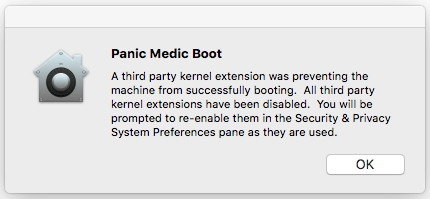
Upgrade macOS to Big Sur 11.3 or later. While you’re at it, install the latest stable macFUSE from https://osxfuse.github.io/.