
Connecting Foldr to on-premise SharePoint

Foldr can present sites and document libraries from on-premise SharePoint Server alongside SMB shares and cloud storage, exposed to users as ordinary folders in the web, mobile, and desktop apps. Supported releases: SharePoint Server 2013, 2016, 2019, and Subscription Edition.
Configure the site as a Foldr share
-
Sign into Foldr Settings as
fadminand open Files & Storage. -
Click + Add New and configure a new share, one per SharePoint site or document library you want to surface.
-
In the storage URI / path, supply the SharePoint URL with the protocol prefix:
https://sharepoint.example.local/sites/finance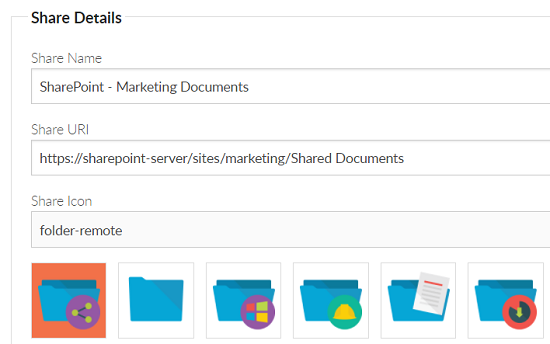
Use
https://if your SharePoint server has TLS configured (recommended).http://is supported for legacy deployments but exposes credentials in transit.
Tip: while you can point Foldr at the root of a site, it’s usually neater to point straight into the Shared Documents library (e.g.
https://sharepoint.example.local/sites/finance/Shared Documents). That way users see the document content rather than the SharePoint chrome.
Enable NTLM authentication
On-premise SharePoint authenticates clients via NTLM rather than the OAuth flow used by SharePoint Online.
-
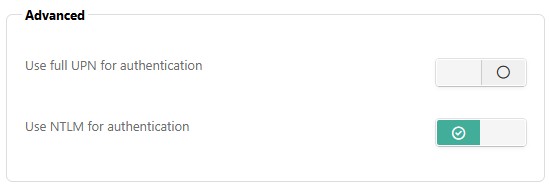
Open the share in Files & Storage and go to the Access tab → Advanced.
-
Toggle Use NTLM authentication on.
Permit NTLM on the SharePoint server
NTLM must also be allowed on the SharePoint side. In the SharePoint Central Administration UI:
- Open Manage Web Applications.
- Select your web application.
- Open Authentication Providers and confirm NTLM is one of the allowed methods.
What users see
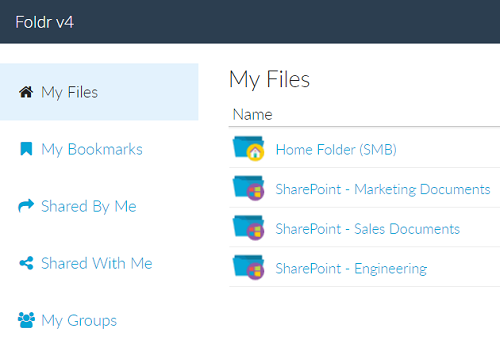
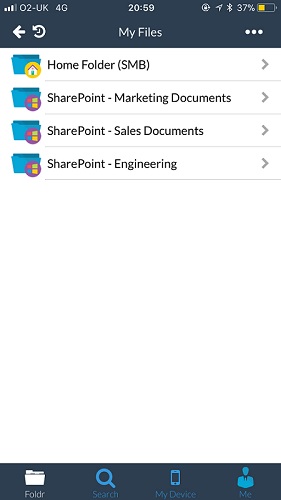
Once configured, the SharePoint site appears in users’ file lists alongside their other shares, in every Foldr client.
Web app:
iOS app:
Files behave like SMB content: open in place, edit through the Office apps, share via Foldr’s sharing features.
Related articles
- Onedrive and SharePoint Online integration: the cloud equivalent for Microsoft 365 SharePoint.
- Presenting SharePoint Online sites: per-site / per-library address patterns for SharePoint Online.