
Troubleshooting SMB share visibility (too few or too many)
SMB share visibility issues come in two flavours, and they have very different causes. Use the section that matches what you’re seeing.
No SMB shares are displayed when a user signs in
If a user signs into Foldr and no SMB shares show under My Files, it’s almost always one of three things: the appliance can’t resolve the file server’s hostname, the user has no permission on the backend file server, or the Foldr-side permissions on the share are filtering them out.
DNS settings
Configure the appliance’s DNS in Foldr Settings → Appliance → Network, or from the appliance console (direct or SSH; port 2082 on v9.x and earlier, port 20820 on v10.x and later) using the netconfig menu.
Short / unqualified hostnames in share paths
For Foldr to resolve unqualified server names (e.g. smb://server/share rather than smb://server.company.internal/share), either the appliance’s hostname must be set inside the Active Directory domain, or a Search Domain must be configured.
The appliance’s hostname should reflect the internal domain, not its public URL. If your AD domain is company.internal, set the appliance hostname to something like foldr.company.internal.
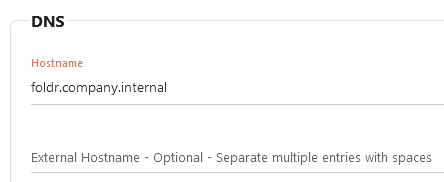
Or set the Search Domain to the AD domain name:
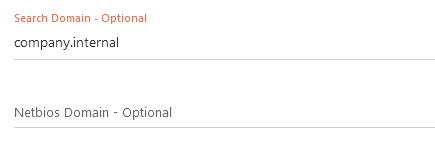
After either change, the appliance should resolve short hostnames. From the console, ping server should work without needing the FQDN:

Foldr-side share permissions
When a share is added in Foldr Settings → Files & Storage, a default permission entry is applied: the built-in Foldr Users group (everyone signed in) with read and write allowed.
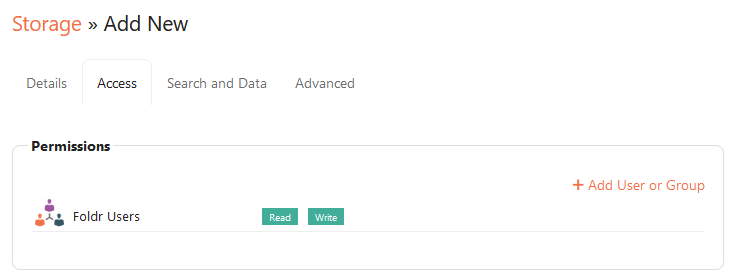
With the default in place, when a user signs in Foldr connects to each share in turn. If the user has access on the backend file server, the share appears; if not, it’s hidden.
If you have many shares, this share-by-share probe is slow. Replace Foldr Users on each share’s Permissions with the specific Active Directory users or groups who should see it. Sign-in becomes faster because Foldr only checks the relevant shares.
If a particular share isn’t showing for a user it should be visible to, double-check both:
- Backend ACLs. The user has at least Read on the file server share itself.
- Foldr permissions. The user (or a group they belong to) is allowed under the share’s Access tab.
A user can see shares they shouldn’t have access to
The opposite problem: a user signs in and sees a share that should be restricted. By default Foldr respects the underlying file-server ACLs, so seeing a share they shouldn’t have access to means the backend permissions are wrong. That’s the recommended thing to fix.
The recommended action is to correct the ACLs on the file server itself.
Override at the Foldr layer (when fixing the backend isn’t possible)
If for whatever reason you can’t change the backend ACLs, you can deny access at the Foldr layer instead. In Foldr Settings → Files & Storage → Edit share → Access, replace the built-in Foldr Users permission with specific Active Directory users or groups granted Read / Write as required. Add explicit Deny entries for the users or groups who should not see the share.
Foldr permissions apply to the entire share. Sub-folder permissions are not available at this layer (those still come from the file server’s NTFS ACLs).
Watch out for “use service account for all access”
A very common cause of users seeing shares they shouldn’t: the share has a service account configured under Access and the Use service account for all access toggle is on. With that toggle enabled, every signed-in user accesses the share through the service account’s credentials. So backend per-user ACLs no longer apply. That’s a deliberate feature (it’s how some integrations need to work), but if it’s enabled by accident the share’s contents become visible to anyone the Foldr permissions allow.
If “use service account for all access” was enabled by mistake, switch it off and the backend ACLs come back into play.