
TLS certificates for Foldr deployments in Azure
When you deploy a Foldr VM in Azure, the public hostname Azure assigns is a subdomain of cloudapp.net, for example foldr-prod.cloudapp.net. No certificate authority will issue a TLS certificate for a cloudapp.net hostname because Microsoft owns the domain, and CAs only sign certificates for domains the requester controls. This applies to free Let’s Encrypt certificates and to commercial certificates from any CA (DigiCert, GoDaddy, etc.).
The fix is to point a hostname inside your domain at the Azure VM, and have the certificate issued for that hostname.
What to set up in DNS
Add two records on a domain you control:
- A record pointing your chosen hostname at the public IP of the Azure VM (find it in the Azure portal under the VM’s overview).
- CNAME record as an alternative or supplement, mapping the hostname to the
cloudapp.netname. The CNAME approach lets Microsoft handle IP changes if your VM ever gets a new one.
For example, on example.com:
foldr.example.com   A     20.0.123.45
foldr.example.com   CNAME foldr-prod.cloudapp.net
(In practice, use one or the other, not both for the same name.)
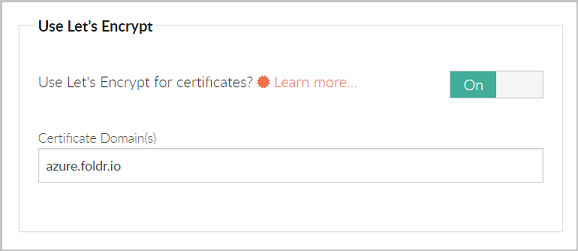
Issuing the certificate
Once DNS is in place and foldr.example.com resolves to the Azure VM, follow the standard certificate flow:
- For Let’s Encrypt, see Let’s Encrypt SSL certificates. The Foldr appliance handles the validation and renewal automatically.
- For a commercial certificate, see Installing a signed SSL certificate for the OpenSSL CSR or PFX import flow.
The certificate is issued for foldr.example.com. Users access Foldr at that URL; the underlying cloudapp.net hostname stays internal.
Related articles
- Deploying the Foldr server in Azure: the full Azure deployment walkthrough.
- Installing a signed SSL certificate: cert install on the appliance.
- Let’s Encrypt SSL certificates: free, auto-renewing certificates.