
Foldr can present Google Drive and Google Shared Drives inside the Foldr interface alongside on-premises shares and other cloud connectors. Users can also edit Google Workspace files (Docs, Sheets, Slides) and Microsoft Office files in the Workspace web apps directly from the Foldr web app.
There are two ways to link Active Directory accounts to Google accounts: automatic account linking (using a service account with domain-wide delegation) and manual account linking (each user signs in once with their own Google credentials). Pick one for your deployment based on the trade-off below.
Automatic vs manual: which to use
Automatic linking uses a Google service account with domain-wide delegation. The service account impersonates each signed-in Foldr user against your Google Workspace domain by matching an Active Directory attribute (typically email or UPN) to the corresponding Google account. As soon as a user signs in to Foldr, their Google Drive is available. No per-user prompt. Per-user Google permissions are respected because the service account is acting as that user.
Manual linking prompts each user to sign in to Google once, the first time they open the Google Drive share in Foldr. Foldr stores OAuth tokens scoped to that user’s Google account. Per-user permissions are respected the same way they are at drive.google.com.
Practical guidance:
- Organisation-controlled Workspace domain → automatic is the right choice. It’s the recommended path: lower friction for users, full per-user permissions, and you can present Shared Drives without each user linking.
- Users have non-organisation Google accounts (e.g. personal Gmail) that you want to link to Foldr → manual. Automatic linking only works against the Workspace domain you control.
- You don’t have admin access to the Workspace admin console → manual, since the auto flow needs domain-wide delegation set in admin.google.com.
For Shared Drives specifically, see the dedicated Shared Drives article. But the integration steps below are still the prerequisite.
Cloud Console setup (shared)
Both linking modes start with a Google Cloud project that has the Drive API enabled.
-
Sign in at https://console.cloud.google.com/apis with an administrative Google account.
-
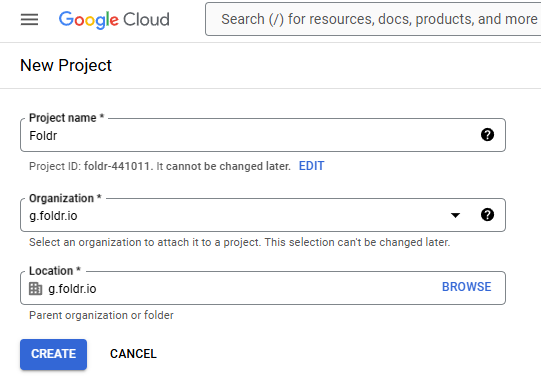
Click the project chevron in the top bar and New Project. Name it (e.g. “Foldr”) and click Create.
-
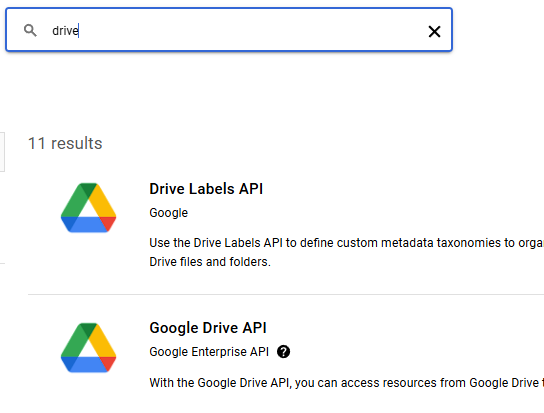
From the APIs & Services dashboard, click + Enable APIs and Services, search for “drive”, select Google Drive API, and click Enable.


That’s the shared bit. Now branch based on the linking mode you chose.
Branch A. Automatic linking (service account + domain-wide delegation)
Create the service account
-
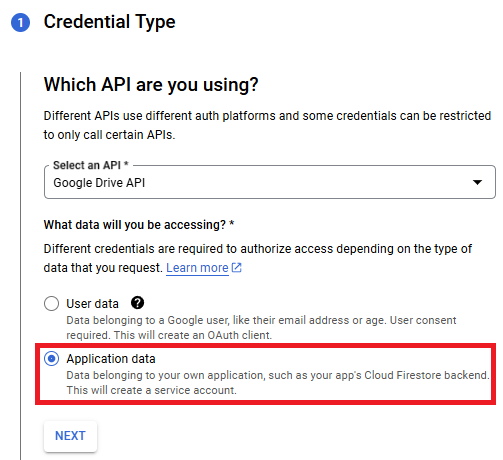
From the Google Drive API panel (or APIs & Services → Credentials), click + Create Credentials → choose Application data.
-
Give the service account a name and click Create and Continue. Skip the optional grant-users step (just click Done).
-
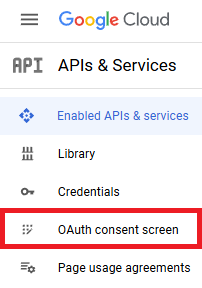
Configure the OAuth consent screen: APIs & Services → OAuth consent screen → Internal user type → enter app name, user support email, and developer contact email → save and continue (no scopes needed).


Generate a JSON key
-
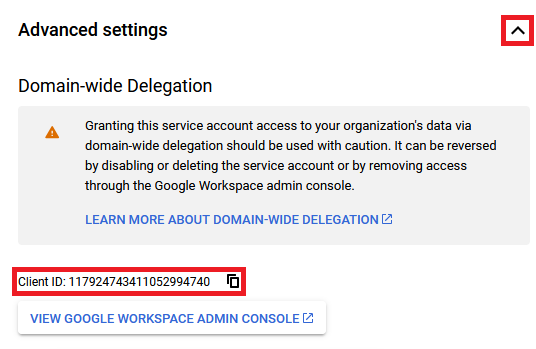
Back in Credentials, click the edit icon on the service account. On the Details tab, copy the CLIENT ID under Advanced Settings. You’ll need it for domain-wide delegation in a moment.
-
Click the Keys tab → Create new key → JSON → Create. The browser downloads a
.jsonfile. Keep this file secure. It’s the credential Foldr will use.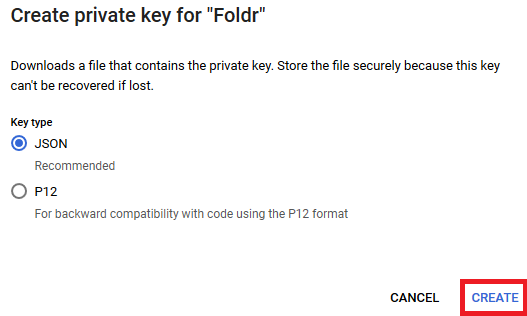


Authorise domain-wide delegation in admin.google.com
-
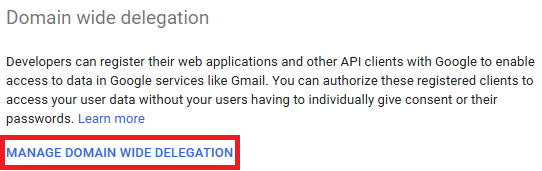
From the service-account details page, under Domain-Wide Delegation, click View Google Workspace Admin Console. Or open admin.google.com directly and navigate to Security → Access and data control → API controls → Manage domain-wide delegation.
-
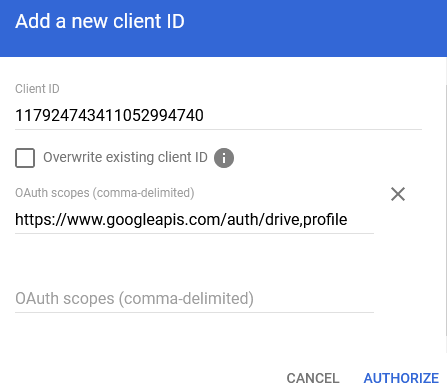
Click Add new and paste the Client ID from step 4. In the OAuth scope field, paste exactly:
https://www.googleapis.com/auth/drive,profileClick Authorize.


Configure Foldr
-
In Foldr Settings → Integrations → Service Accounts → + Add New, choose Type Google.
-
Open the JSON key file you downloaded and paste its contents into the Account Key (JSON) box.
-
Set the Attribute for impersonation to whichever AD attribute matches the user’s Google address. Typically Email (
mailattribute) or UPN (userPrincipalName). If neither matches, choose Custom and enter a pattern like%username%@example.com.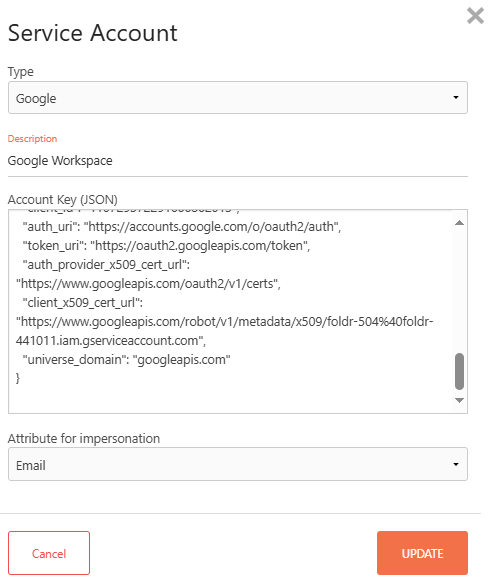
Click Update.
-
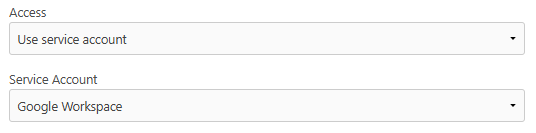
Go to Foldr Settings → Integrations → Google G Suite, Enable the integration, then under Access select Use Service Account and pick the service account you just created. Leave the other fields blank. Click Save Changes.


Branch B. Manual linking (per-user OAuth)
Create the OAuth client
- From APIs & Services → Credentials, click + Create Credentials → OAuth client ID → Web application.
- Configure:
- Authorized JavaScript origins. The public URL of your Foldr installation
- Authorized redirect URIs. That same URL with
/services/gdrive/connectappended (e.g.https://foldr.example.com/services/gdrive/connect)
- Click Save. Copy the Client ID and Client Secret that Google displays.
Configure Foldr
- In Foldr Settings → Integrations → Google G Suite, Enable the integration, paste the Client ID and Client Secret, and click Save Changes.
- (Optional) If you want to restrict which Google accounts can be linked, set Google G Suite Domain to your Workspace domain. Only accounts on that domain will be allowed.
Linking flow for users
Once the integration is enabled, users link their Google account from the Foldr web app:
- Me menu (top right) → Services → Link your Google Account → sign in at Google → Allow.
The link is then shared across all Foldr apps (web, desktop, mobile). Users can unlink at any time from the same Services menu.
Add the storage share
Regardless of linking mode, create the Drive share in Foldr Settings → Files & Storage → + Add New:
- Name. E.g. “Google Drive”
- Storage Address.
%googledrive% - Access tab. For automatic linking, select the Google service account you created. For manual linking, leave Access unconfigured.

For Shared Drives, see the Shared Drives article.
Google Drive is accessible in the Foldr web, desktop and mobile apps. WebDAV connections don’t expose it because Drive’s lack of stable filesystem-style paths makes WebDAV traversal unreliable.
Editing files in Workspace apps
Once the integration is in place, users can edit Office files (Word, Excel, PowerPoint) and native Google files (Docs, Sheets, Slides) in the Workspace web apps directly from the Foldr web app. The Edit with Google Workspace button appears on supported files in the preview.
If the document is hosted in Google Drive, edits save automatically. If it’s hosted somewhere else (e.g. an SMB share), Foldr round-trips the file through Drive and prompts to save changes back to the original location when the tab is closed.
The Windows and macOS desktop apps also let users open Docs, Sheets, and Slides directly from Explorer / Finder.
Search
Search across Google Drive can use either Google’s own API or Foldr’s search index. Pick based on your needs.
Google search API. Quick to enable, results come from Google. No advanced query features.
- In Foldr Settings → Files & Storage, edit the Google Drive share.
- Open the Search & Data tab and enable Show as location for search.
- Click Save Changes.
Foldr’s search index. More setup, but unlocks the query builder, cross-store search, OCR, custom fields, and Captur/MaSH. See Foldr Search setup and the delta-queries article for incremental indexing. (Personal Google Drive supports delta queries; Shared Drives do not.)