
This is the end-user walkthrough for sharing inside the organisation. For the full admin reference covering every option in detail. Sharing modes, deadlines, upload organisation, notifications. See A technical guide to Foldr’s sharing features. For sharing outside the organisation see Sharing files or folders with public links.
If the share button isn’t visible in your Foldr web app, it’s because the administrator hasn’t enabled sharing on that storage area. Contact your IT support.
How to share
-
Find the file or folder in My Files. Click the inline share icon next to it, or open it and use the share icon in the top toolbar. You can also right-click and choose Share.

-
Search for the colleague or group you want to share with.
-
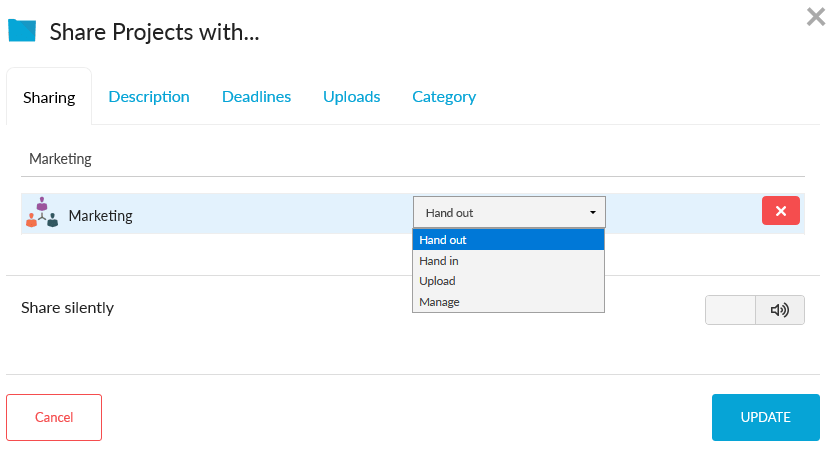
Pick a sharing mode for the recipient (folders only. Files are always read-only):
- Hand-out. Recipient can read and download.
- Hand-in. Recipient can read, plus submit files back. Submissions land in a
Foldr Uploadsfolder organised per user, so each contributor only sees their own. - Upload. Recipient can read existing files and upload new ones, but can’t modify or delete.
- Manage. Recipient has full read, write, and delete.
-
Optionally set a deadline, category, and upload options (see below). Click Share.


The recipient sees the item in their Shared with Me tab. You can see what you’ve shared (and who’s interacted with it) under Shared by Me.
Deadlines
Folders shared as Hand-In or Manage can have a deadline. Three flavours:
- Soft. Deadline is advisory; recipient can still upload after.
- Hard. Recipient can’t upload after the deadline. Existing content remains visible.
- Final. The share is withdrawn at the deadline; the folder disappears from the recipient’s Shared with Me.
Public links
For sharing outside the organisation, use Public Link in the same dialog (or the right-click menu). See Sharing files or folders with public links for the full walkthrough including expiry, custom URLs, descriptions, and password protection.
Activity
The Activity tab on a shared item shows when recipients have viewed, downloaded, or uploaded files. Activity from public-link recipients is logged as “Public User”; activity from named users shows their name.
The web app’s Activity Feed (toggleable from the right side of the window) surfaces the same events alongside any other relevant changes. Items shared with you, files submitted to your hand-in folders, password changes, and so on.